Screenshots
Take a tour of MatchZy Auto Tournament 's interface. Click any image to view in full size.
Dashboard
Get started quickly with the onboarding checklist and quick access cards.
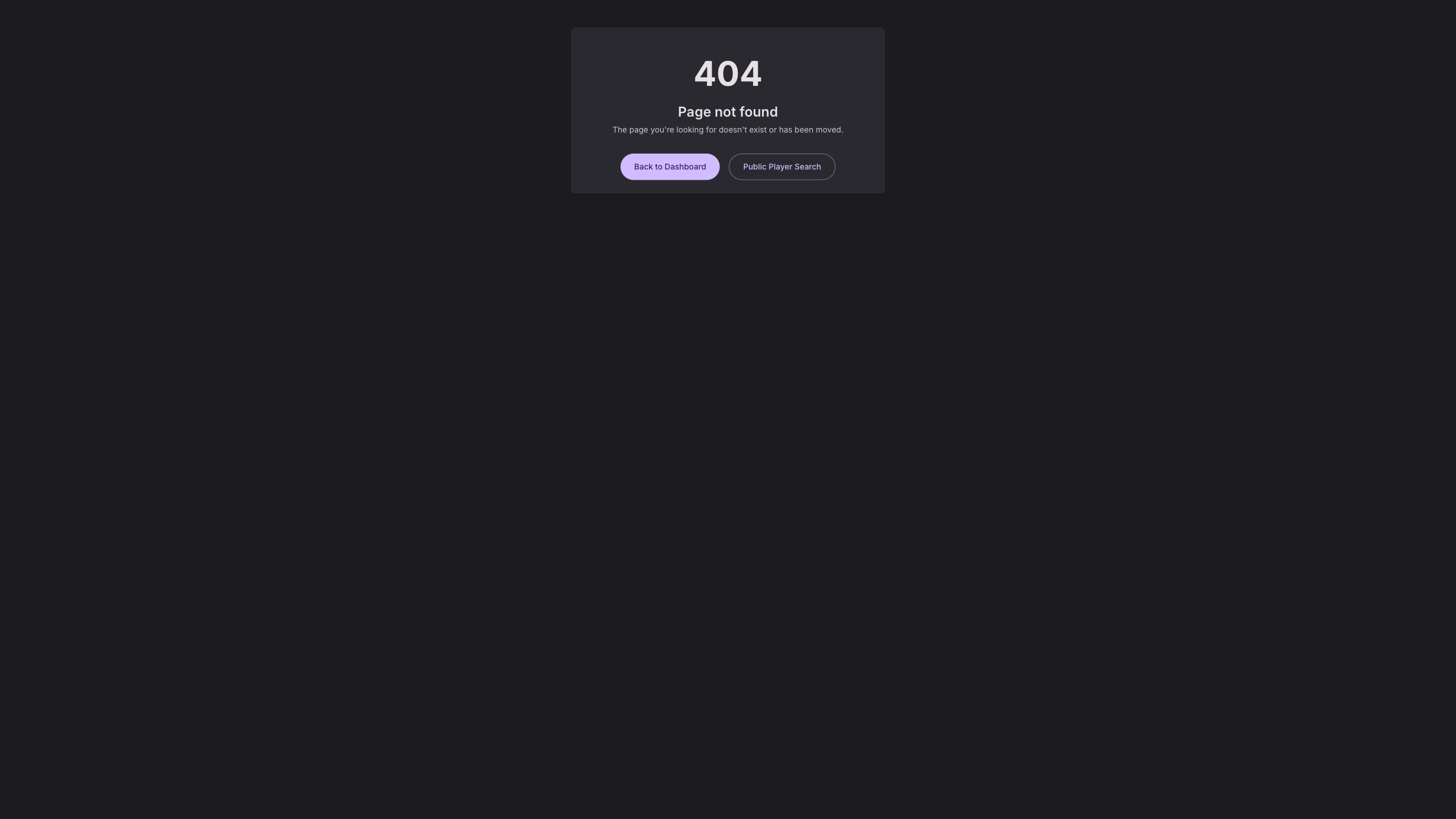
Tournament Setup
Welcome Screen
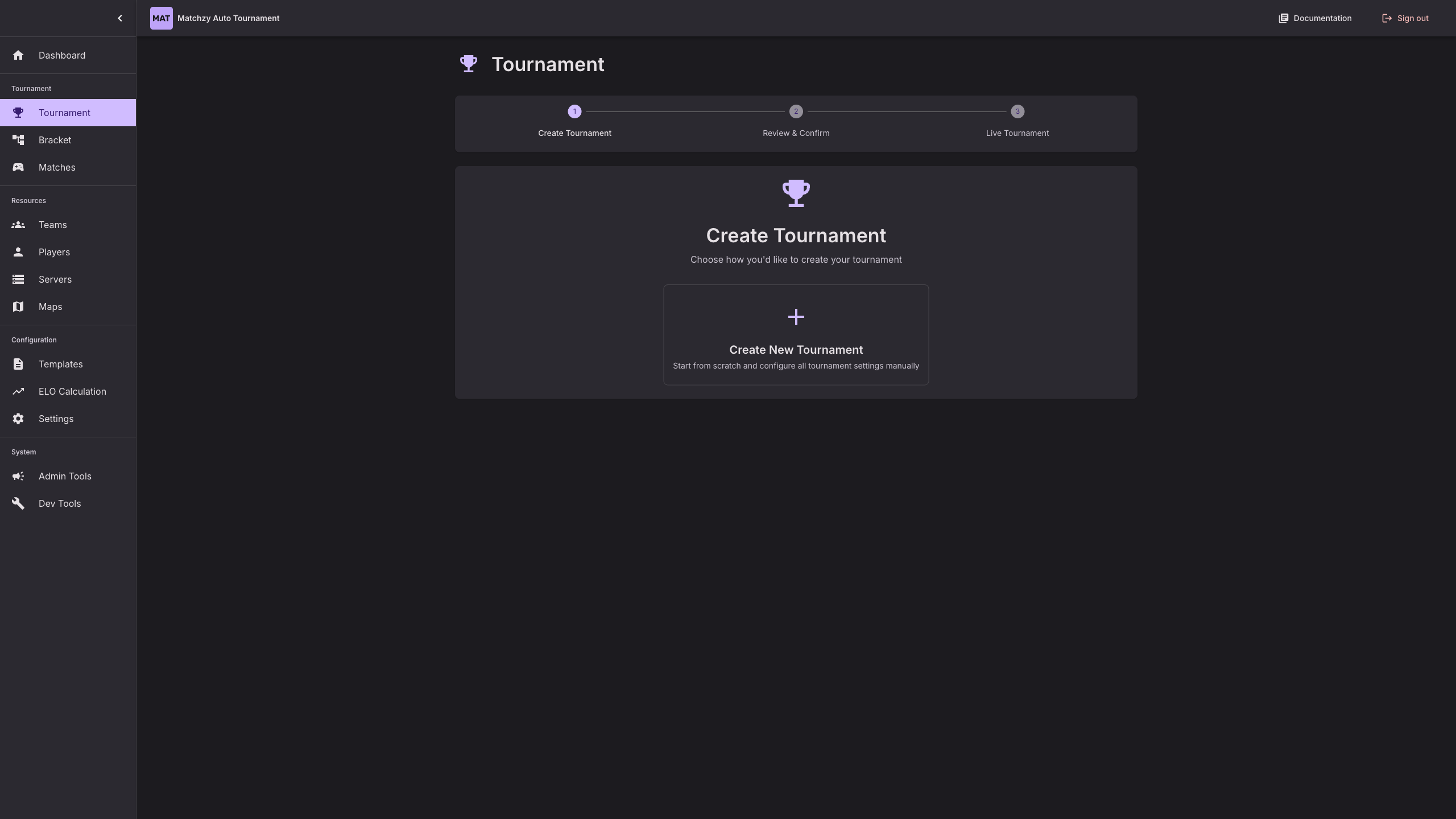
When creating a new tournament, you'll first see the welcome screen where you can choose to create a new tournament from scratch or load from a template.
Tournament Creation Wizard (Step by Step)
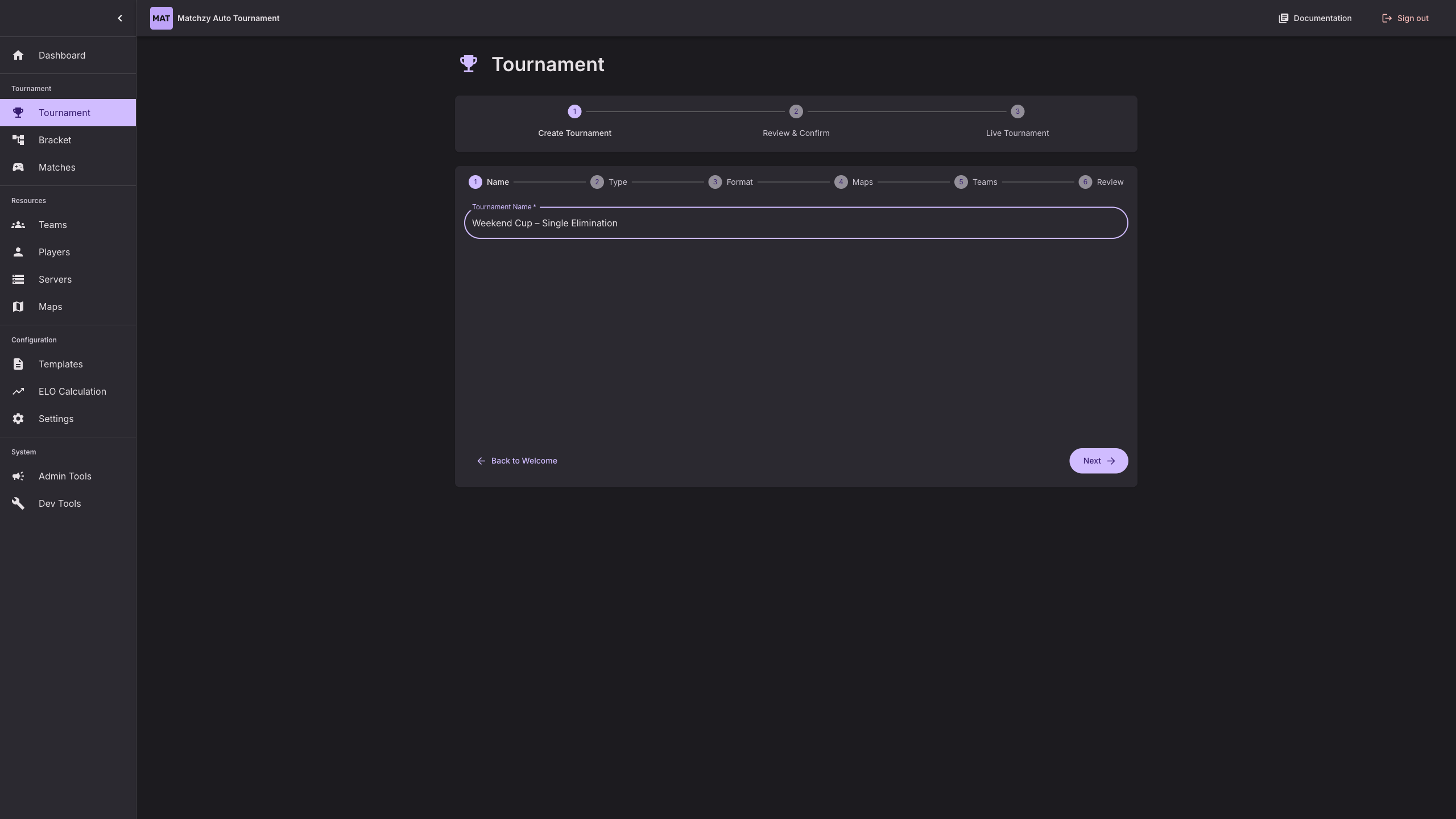
Step 1 – Name
Set the tournament name in the first step of the wizard.
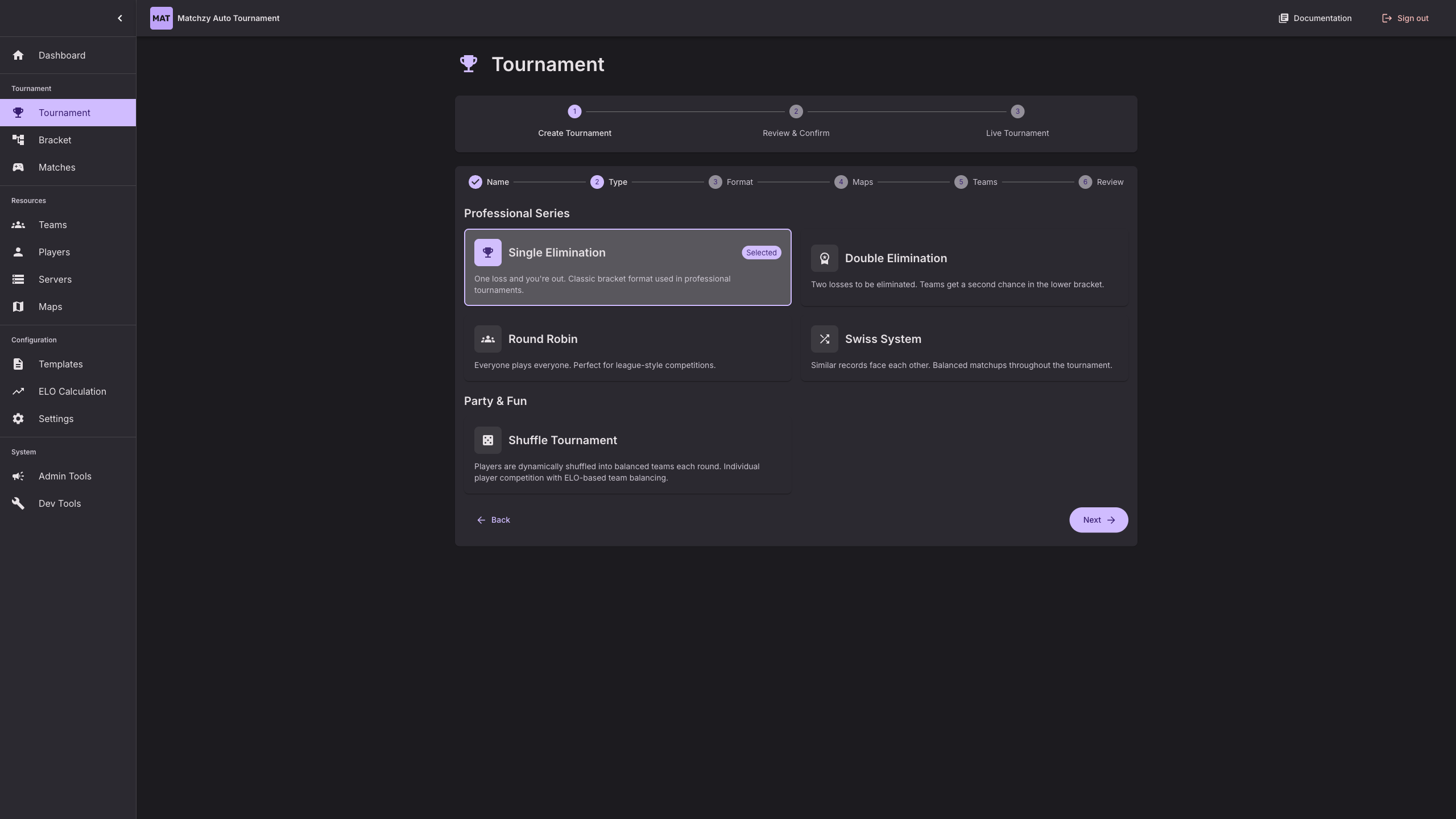
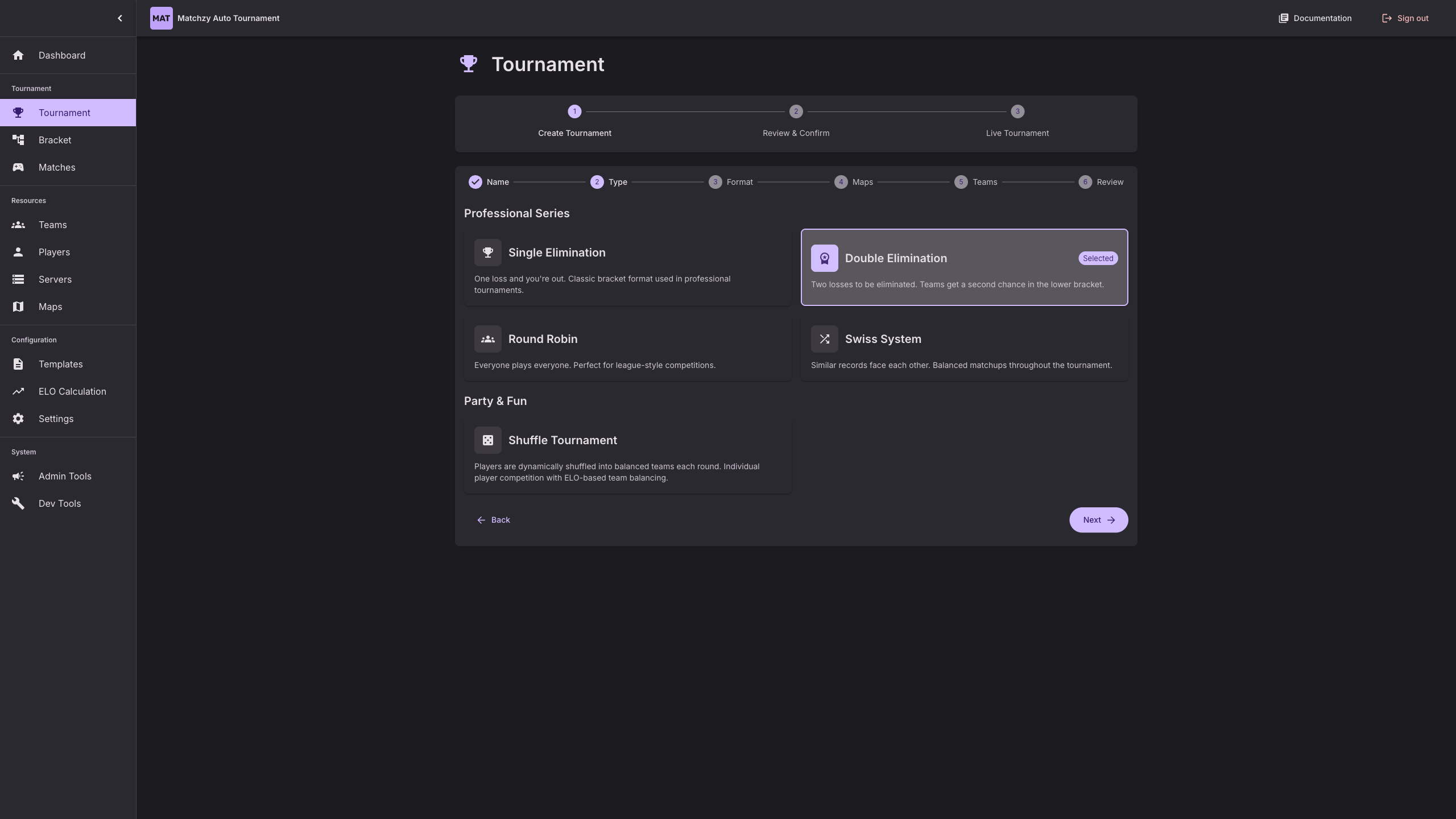
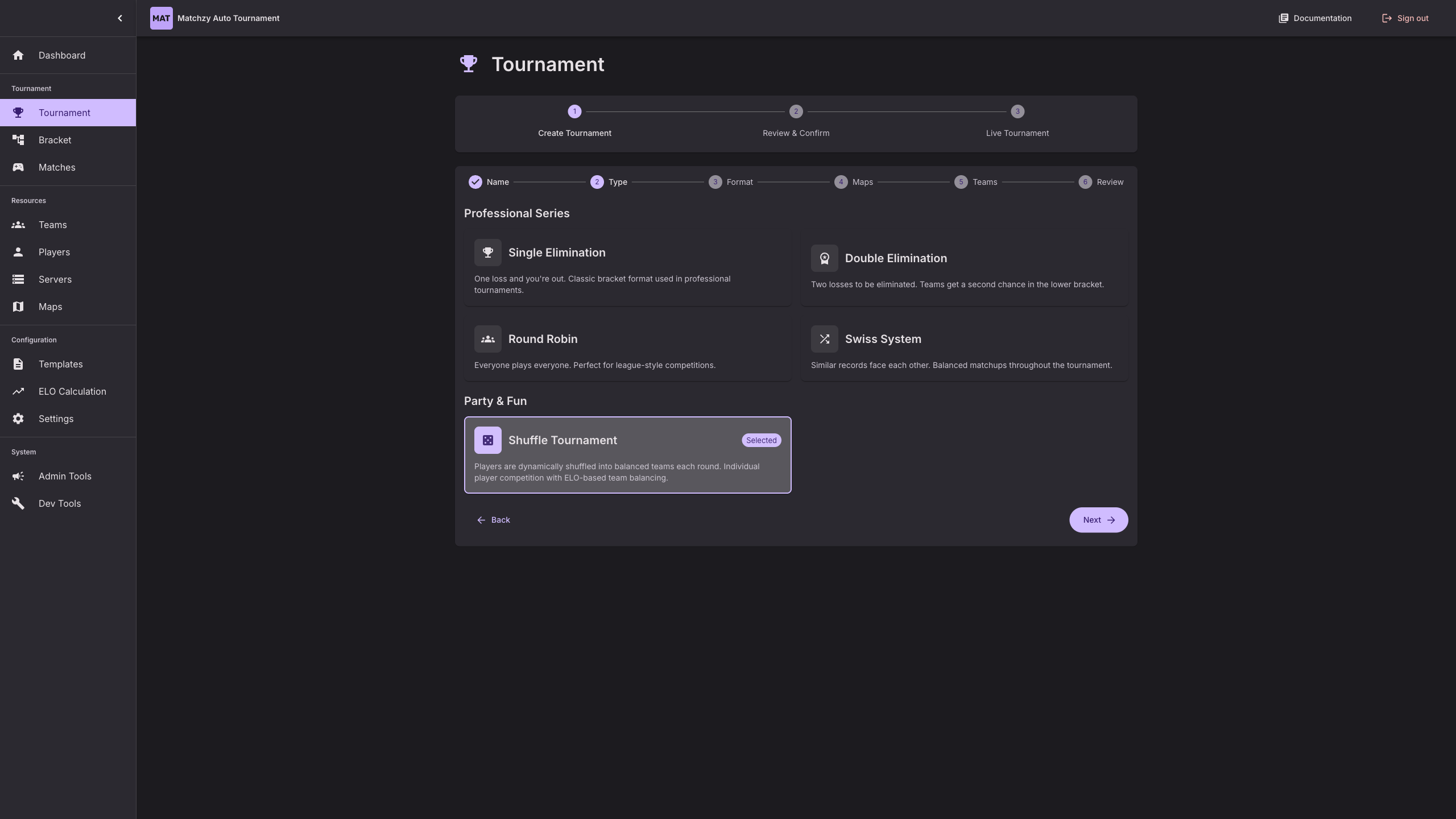
Step 2 – Tournament Type
Choose between single elimination, double elimination, Swiss, or shuffle tournaments.
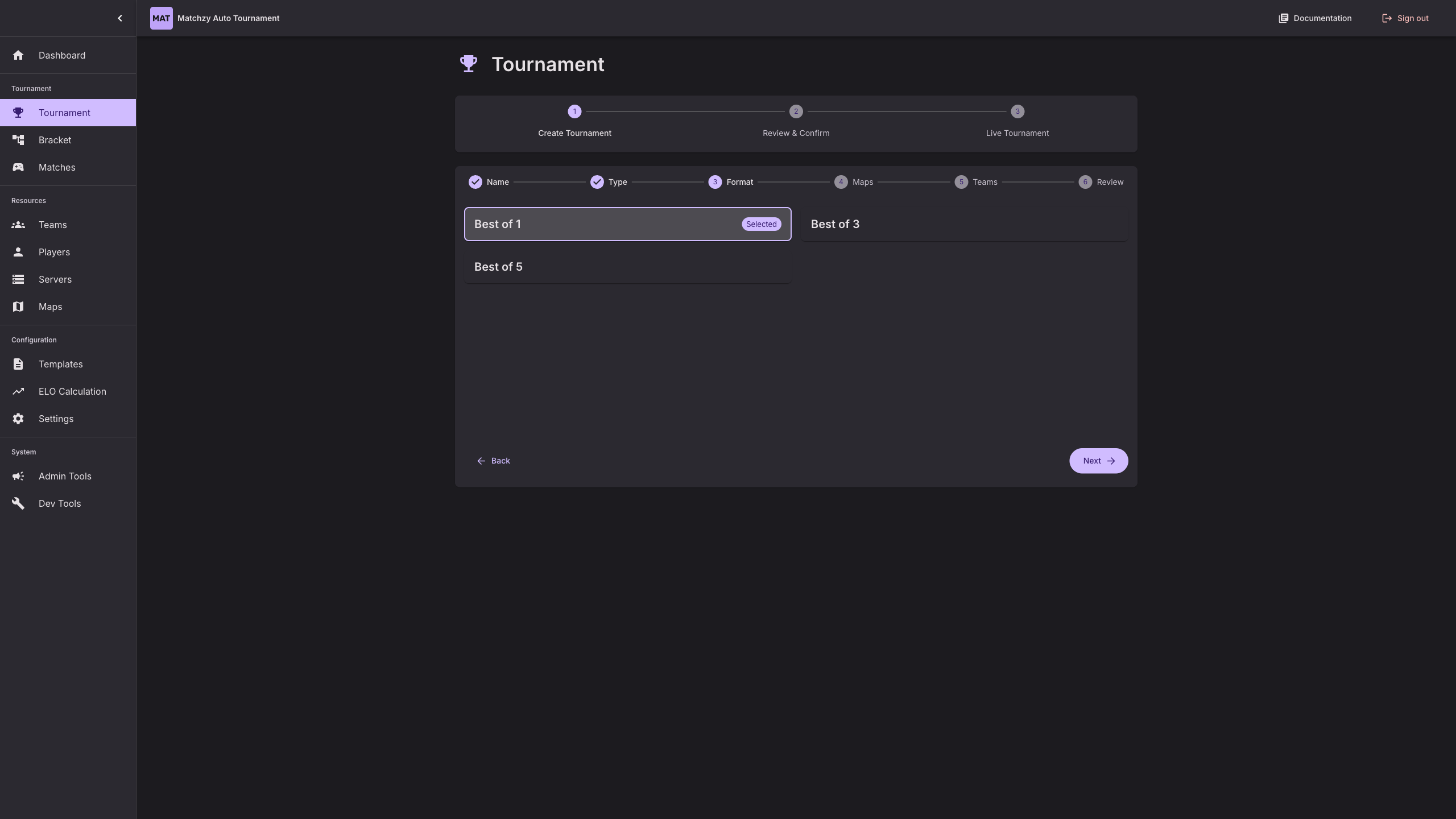
Step 3 – Match Format
Select the match format (Best of 1, Best of 3, Best of 5) for bracketed tournaments.
Step 4 – Maps / Map Pool
Pick a map pool or configure custom maps for the tournament.

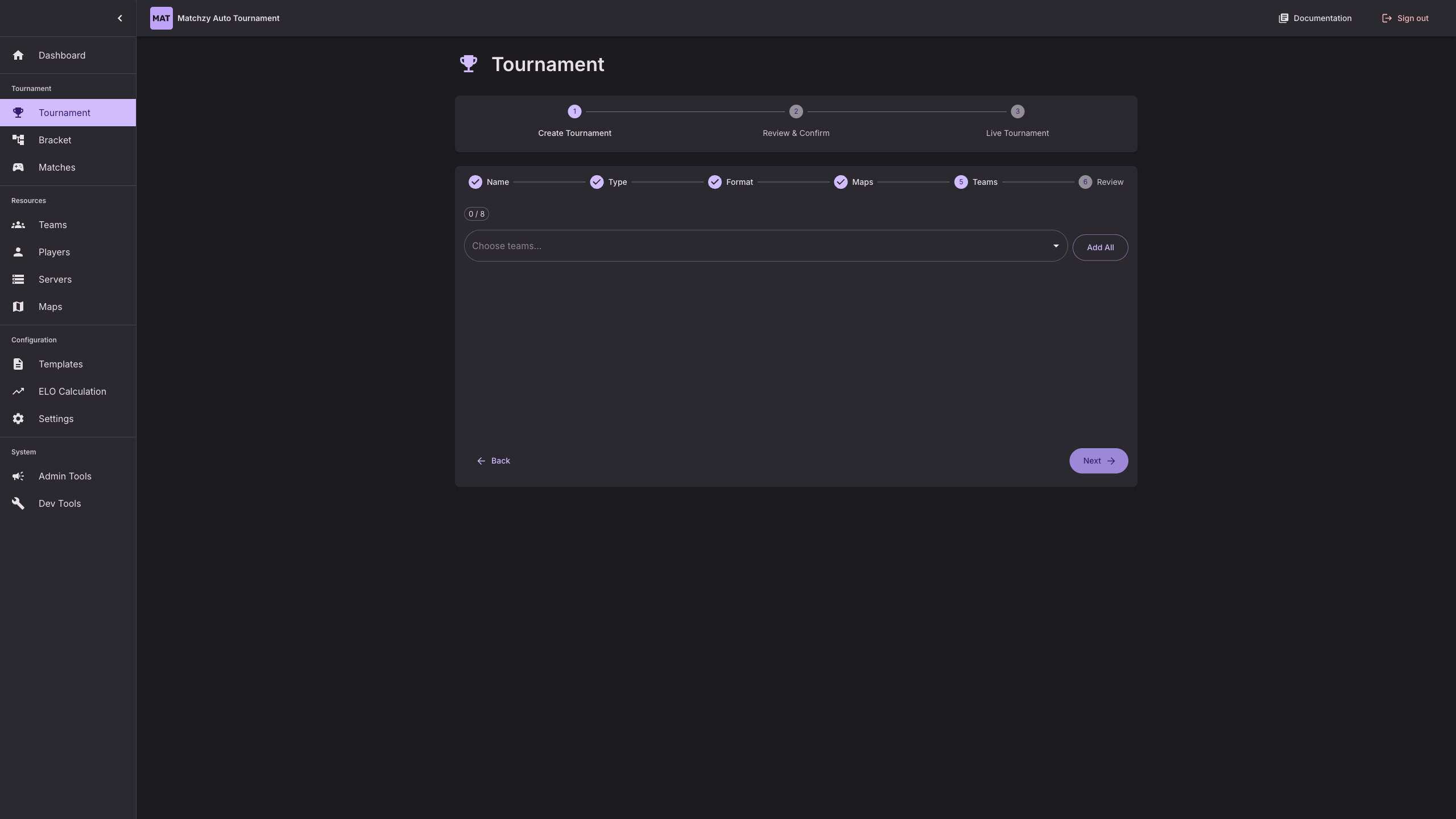
Step 5 – Teams
Select which teams will participate in the tournament and quickly add all teams if needed.
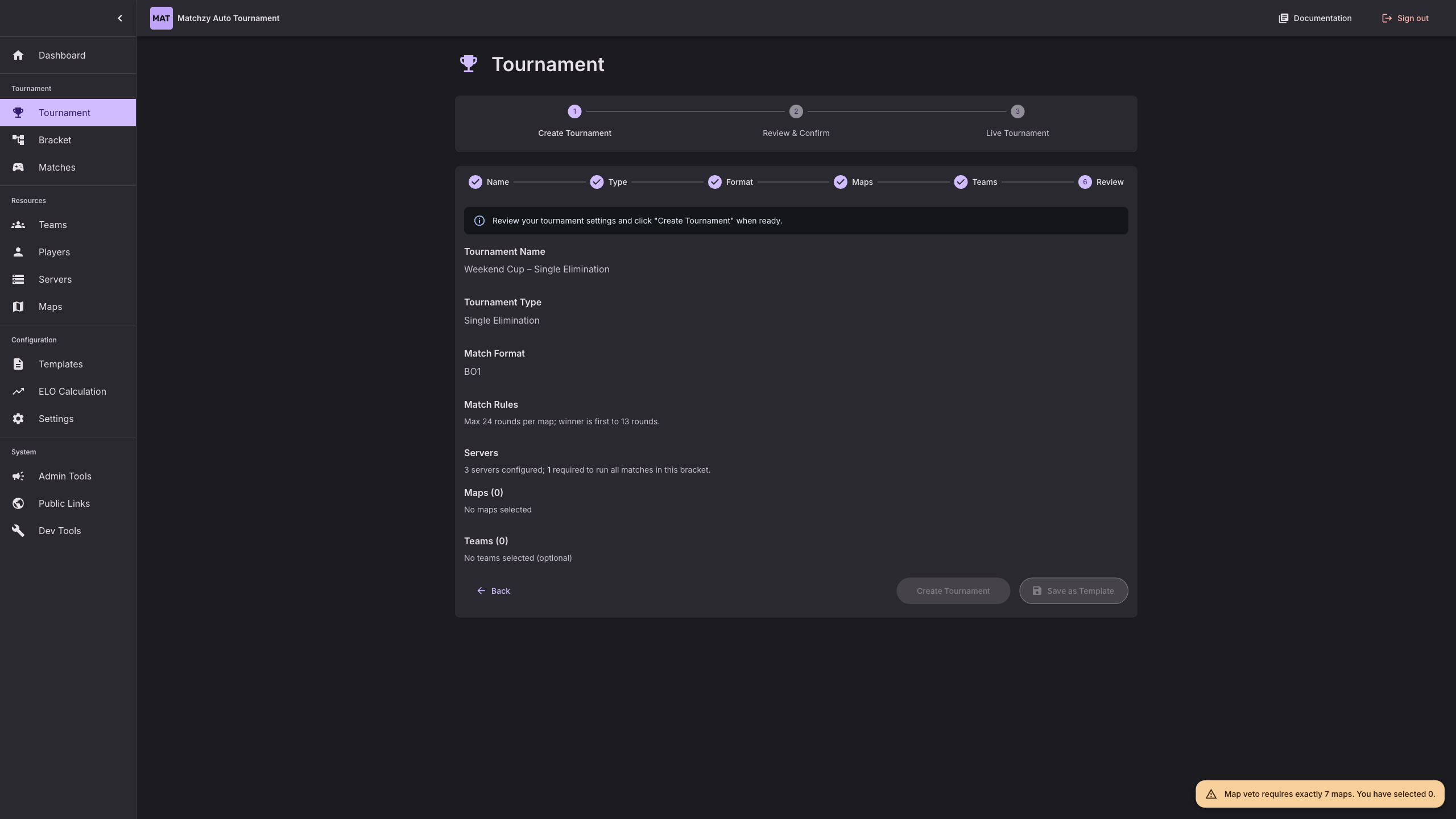
Step 6 – Review
Review all tournament settings before creating the tournament and generating the bracket.
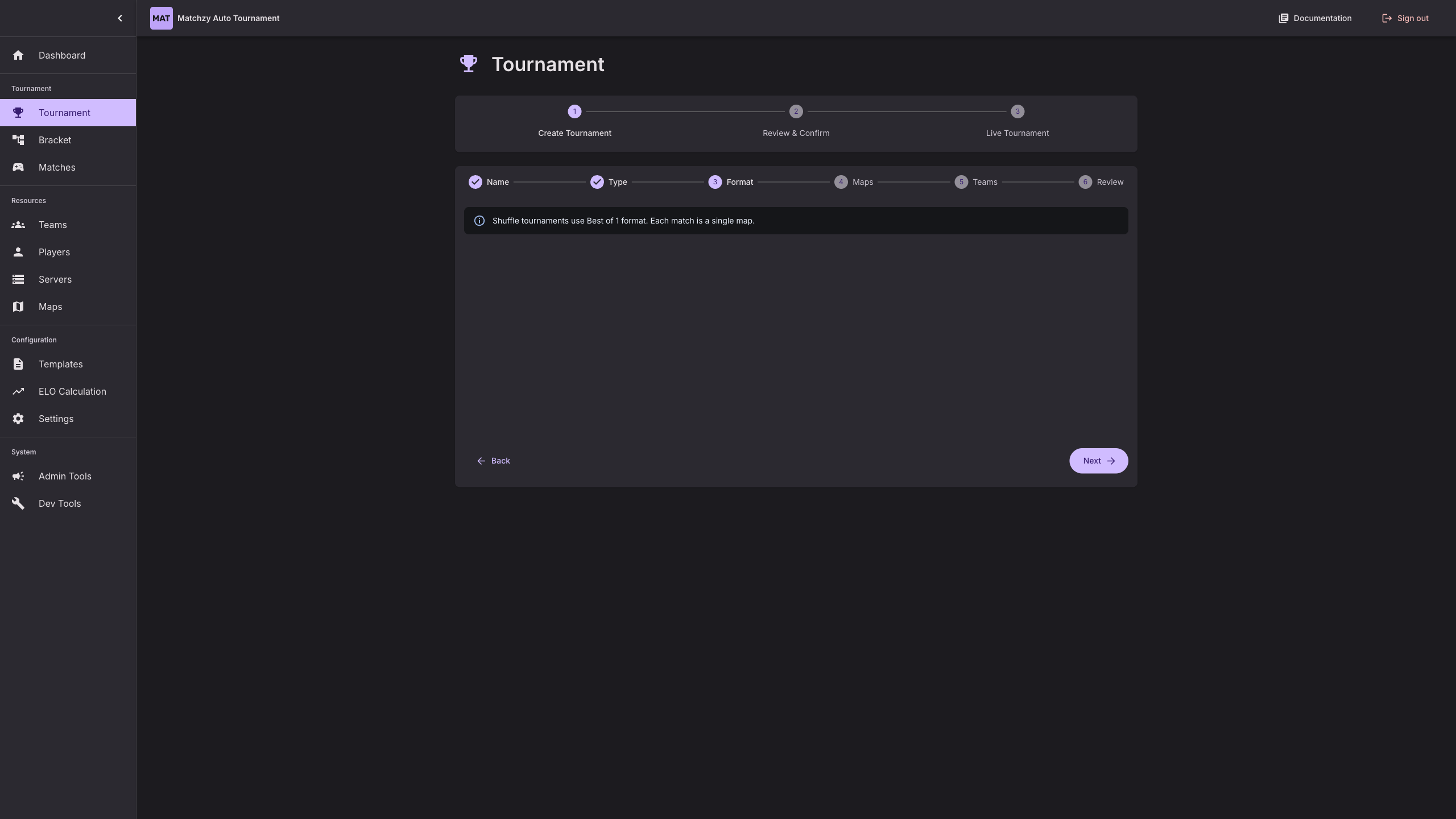
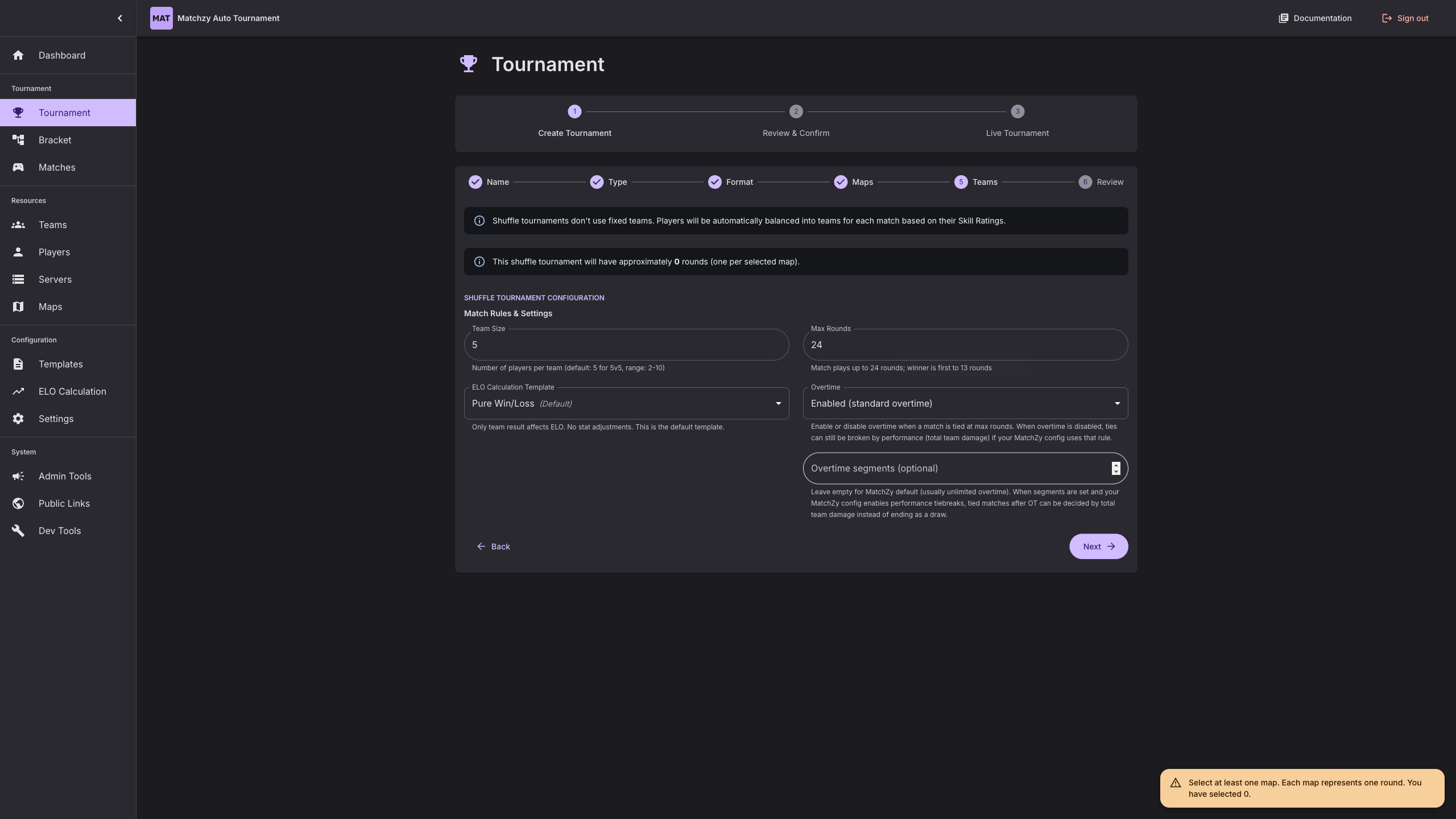
Shuffle Tournament Setup
Shuffle tournaments use Best of 1 format by default and add an extra configuration step for team size, round limits, overtime mode, and ELO template.
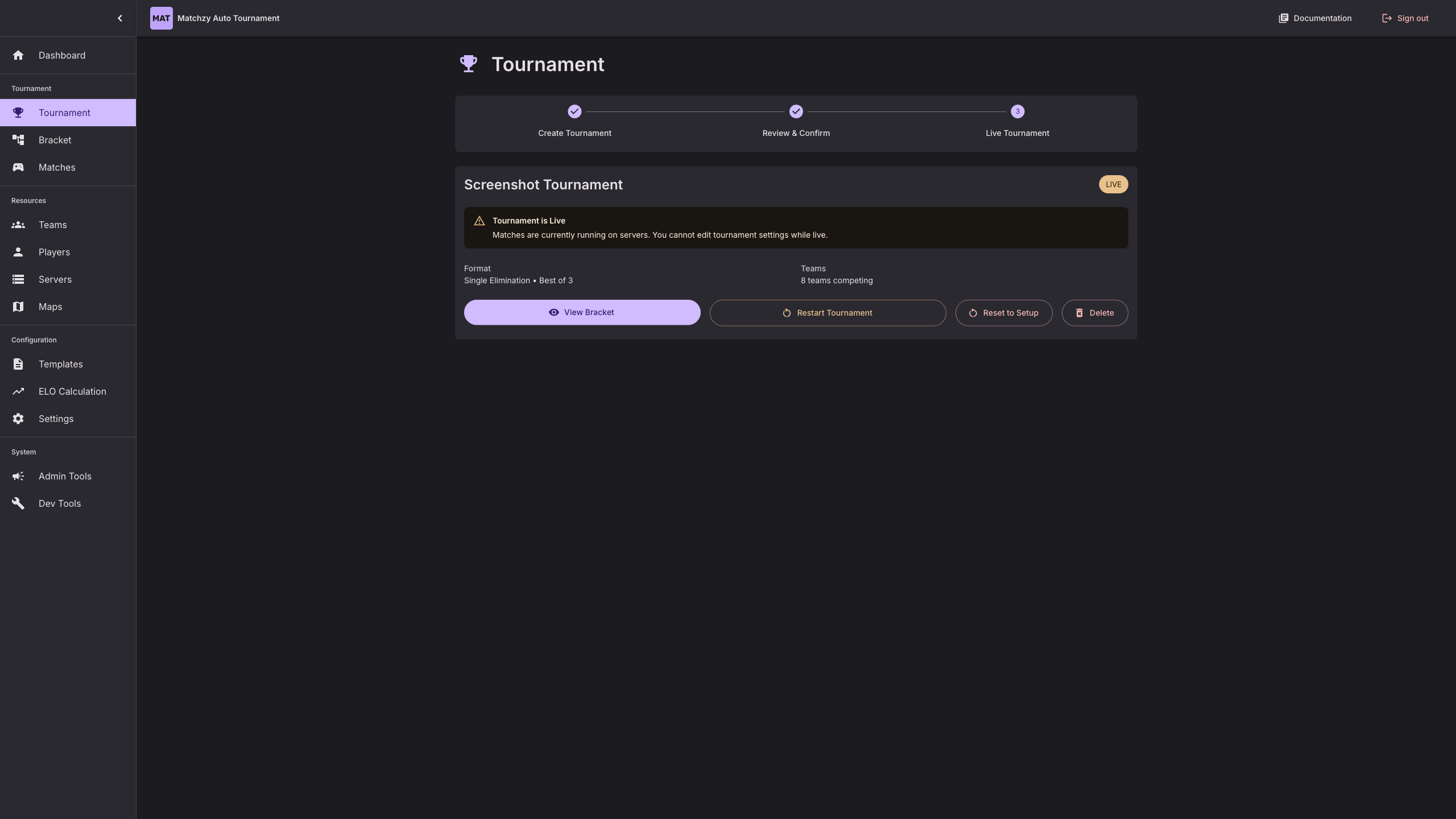
Tournament Form
Configure your tournament with name, teams, maps, and format in a simple step-by-step form. The tournament is shown before starting (go live).
Team Management
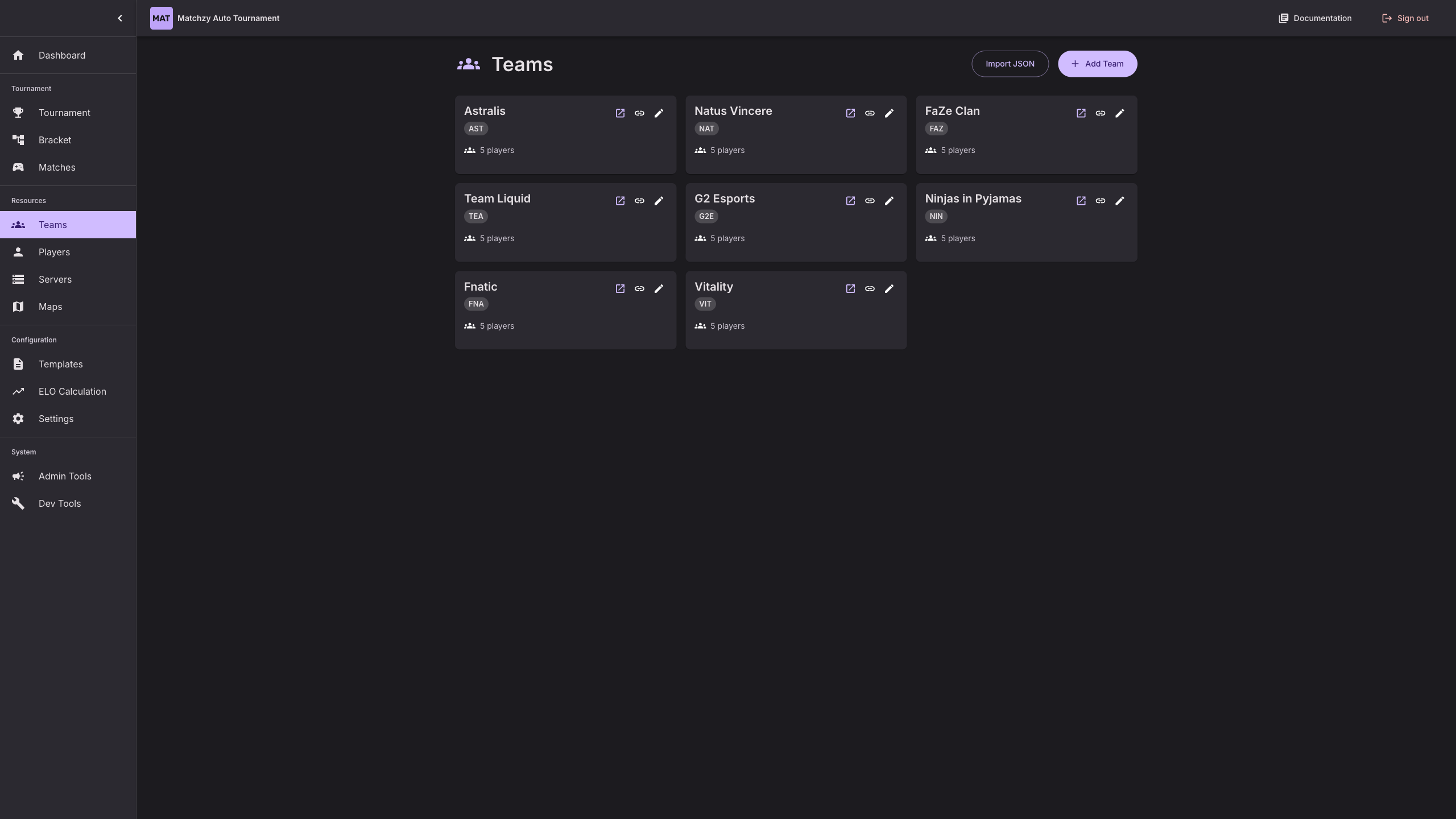
Manage all your teams in one place. Create, edit, and view team rosters with player details.
Select Player Modal
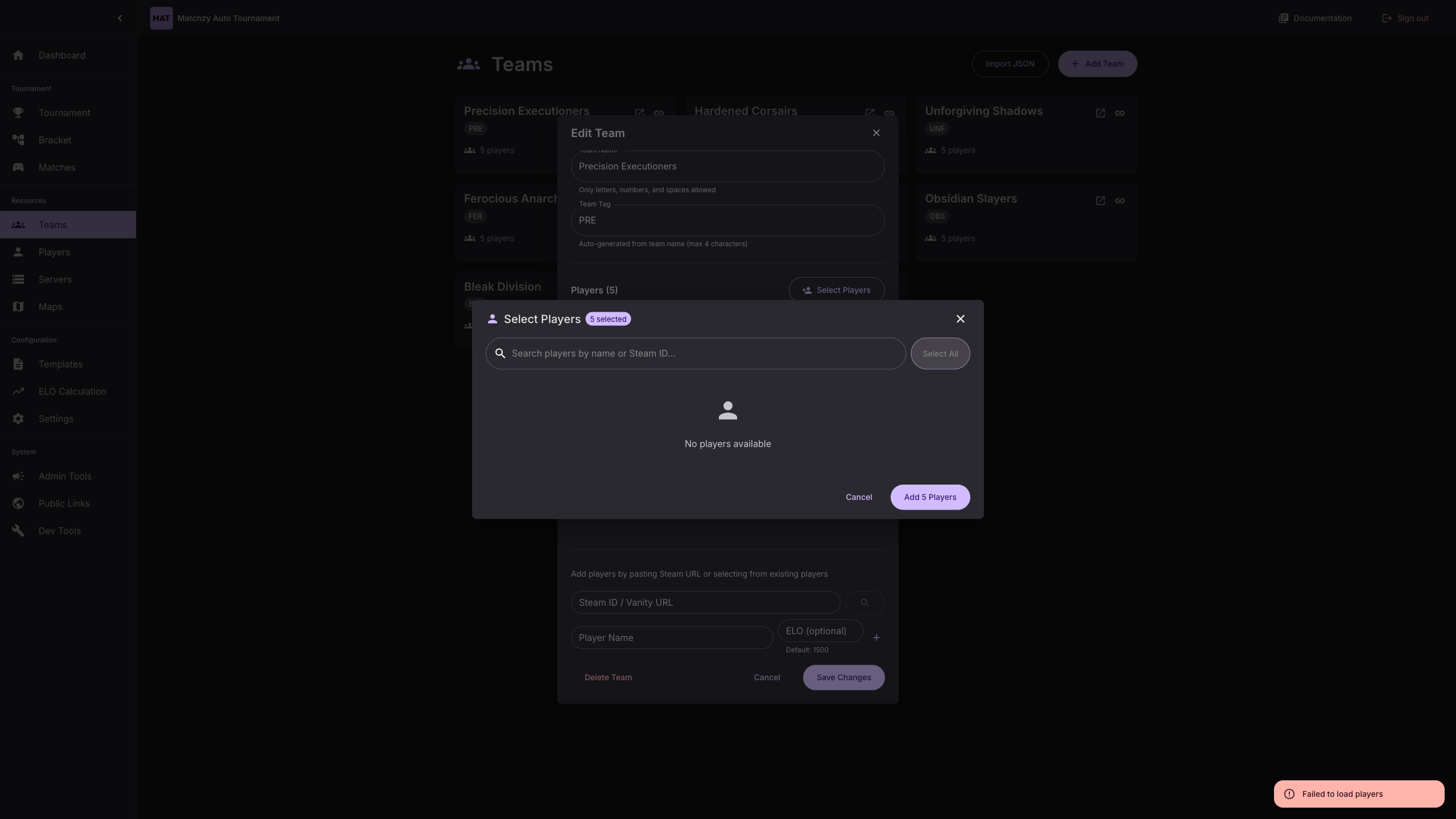
When editing a team, use the player selection modal to add players to your team roster. Search and filter players, then select multiple players at once.
Server Management
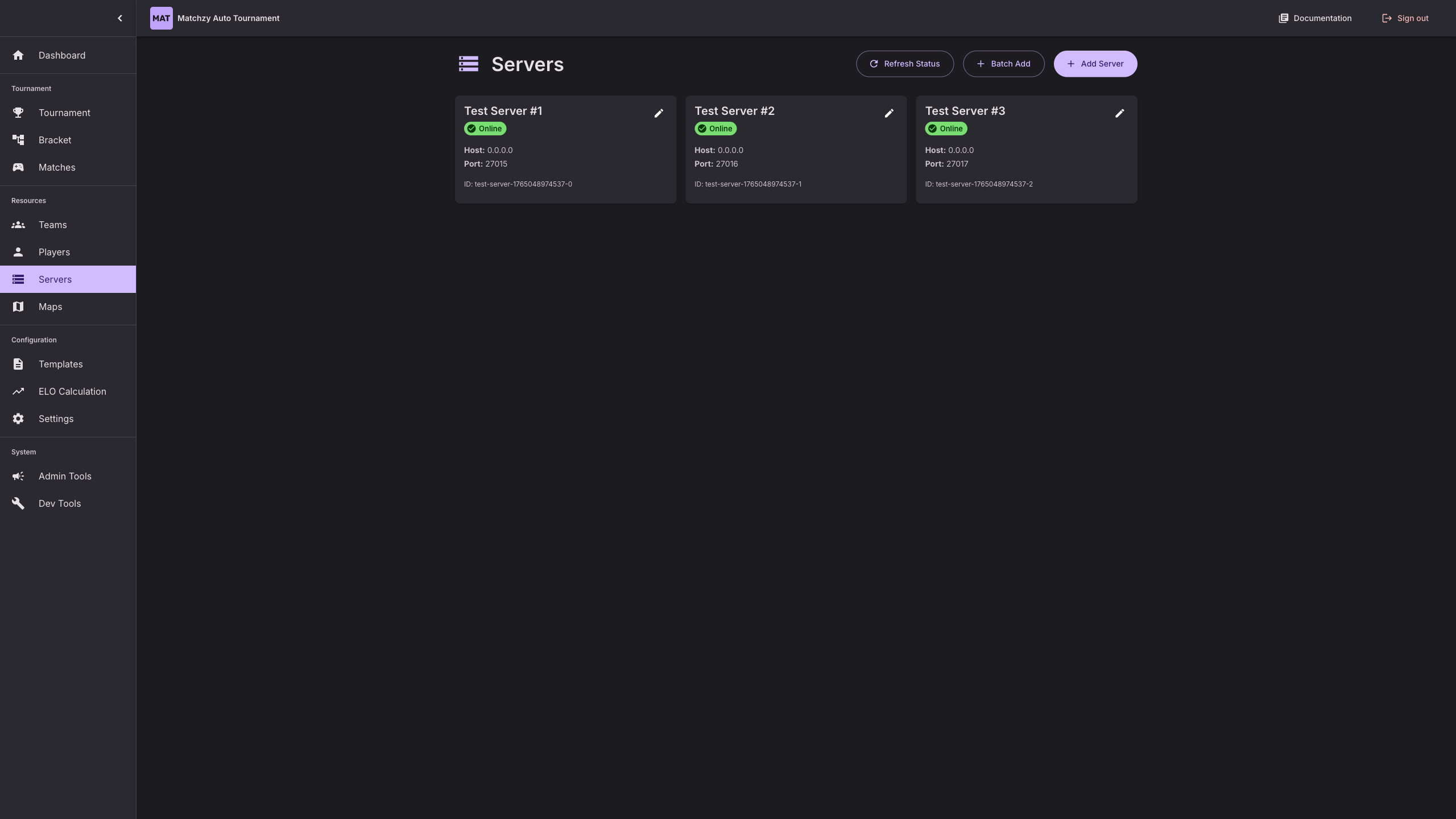
Configure and monitor your CS2 servers with real-time status indicators. Servers with IP 0.0.0.0 are test servers that always show as online.
Tournament Bracket
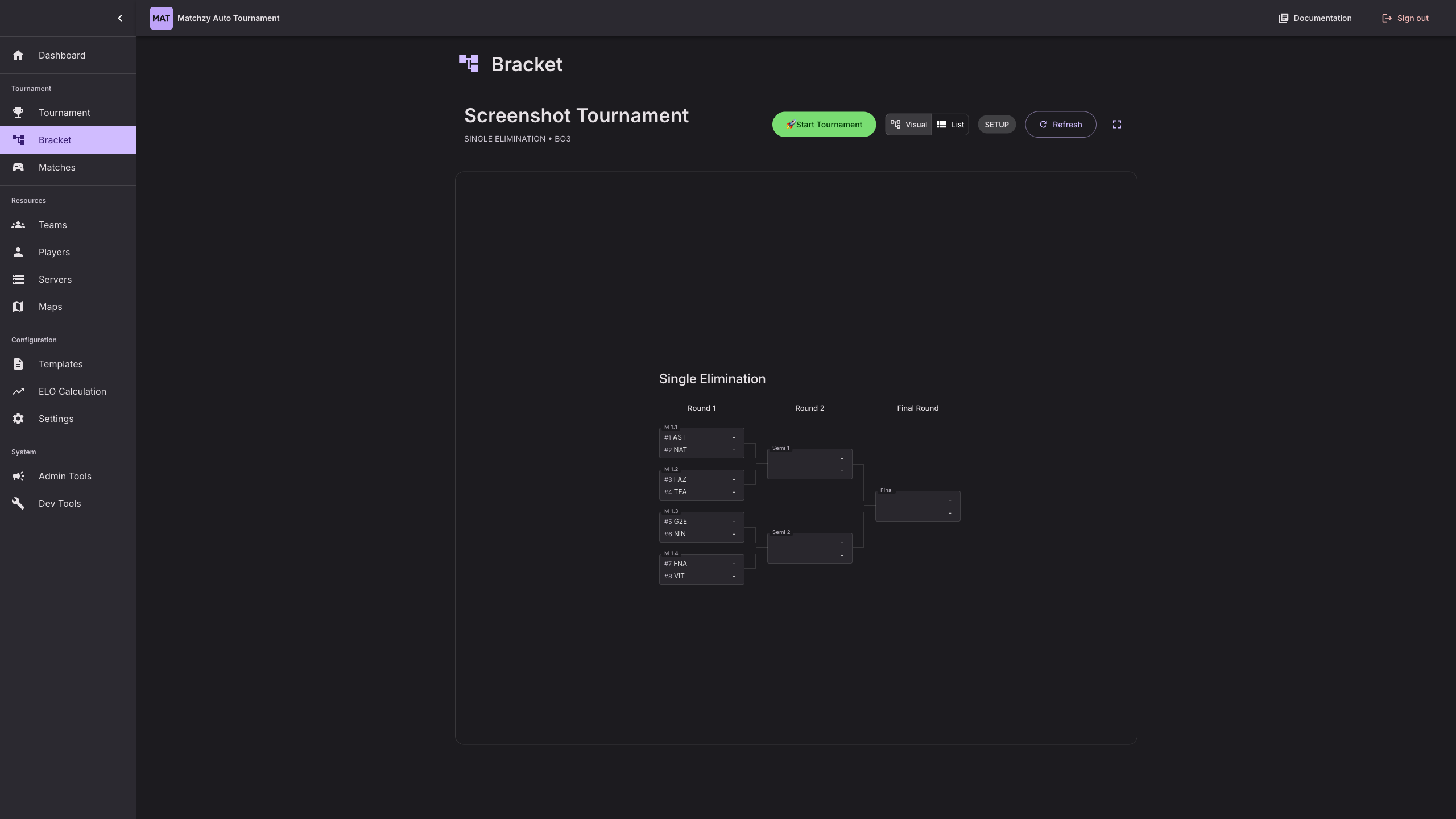
Visual bracket showcasing matchups and progression.
Match Management
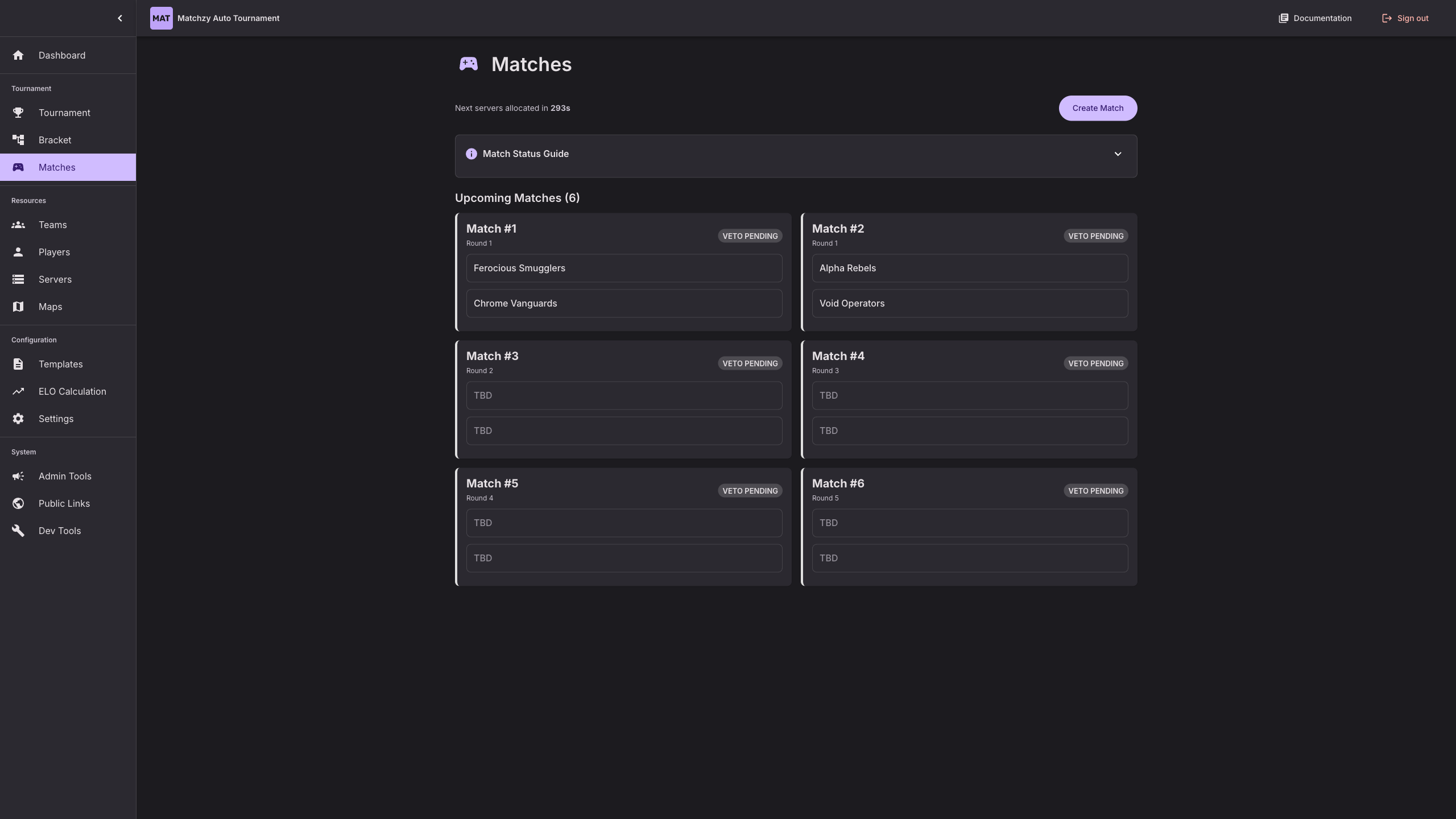
Matches Overview
Overview of all matches with live status updates and match cards.
Public Team Pages
Team Match Page
Teams can view match details, server connection info, and player rosters. This screenshot shows the team page after the veto is complete, with the server allocated and match ready to start.
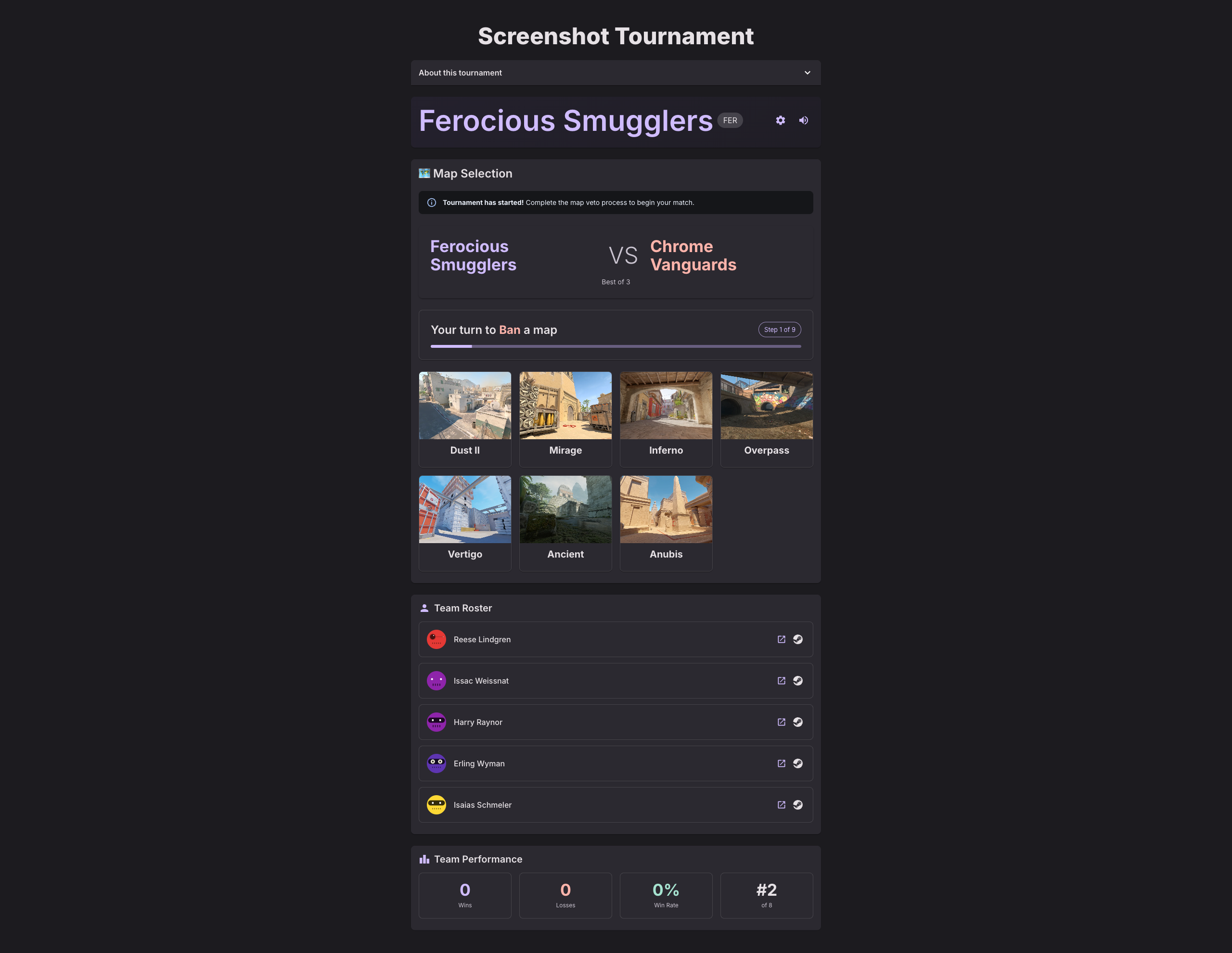
Map Veto Interface
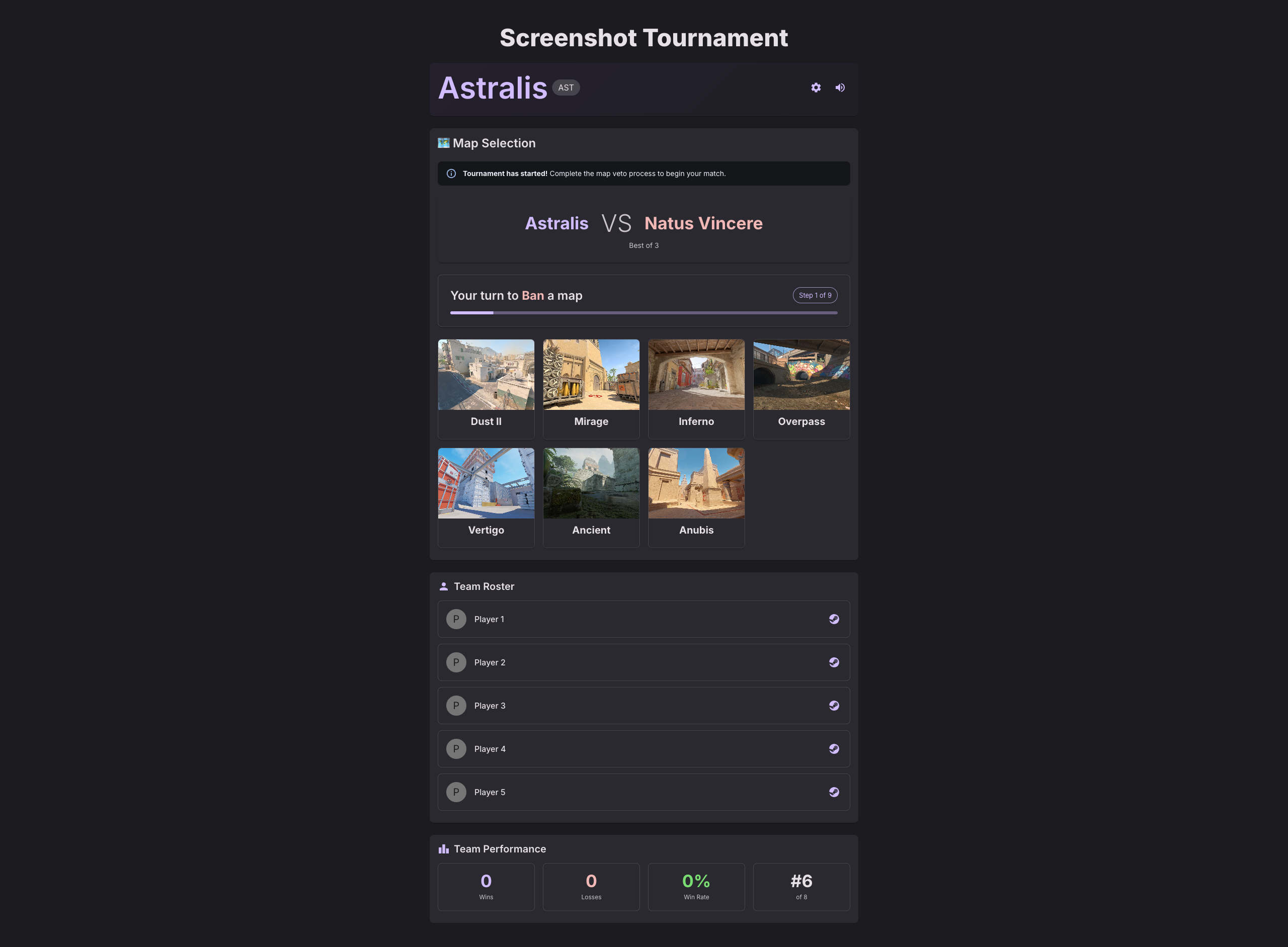
Interactive FaceIT-style map veto for teams with all competitive maps. Teams take turns banning and picking maps.
Initial State - When it's your turn to ban a map:
After Actions - After both teams have made their bans:
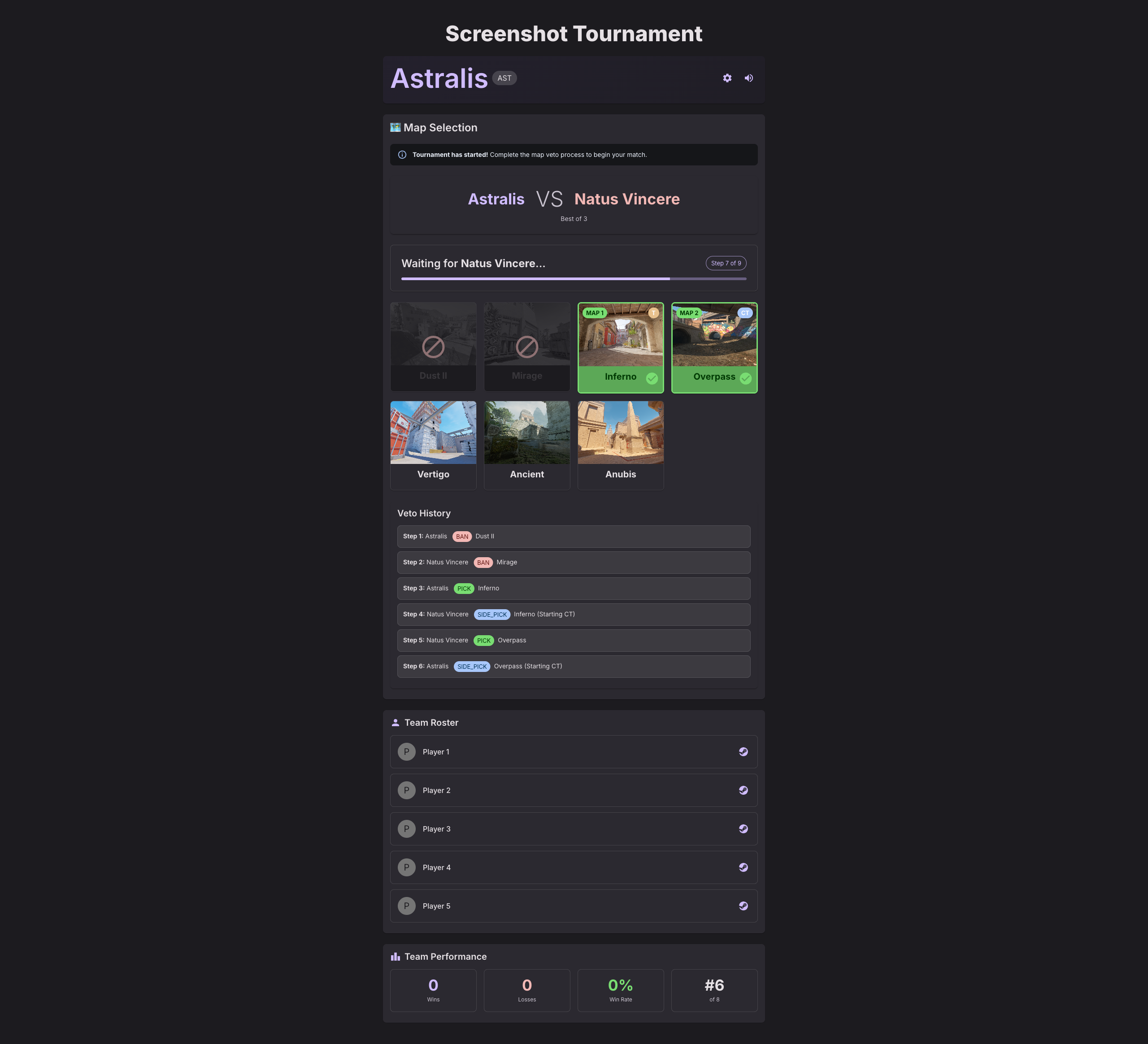
Side Pick - When teams need to pick their starting side (CT or T):
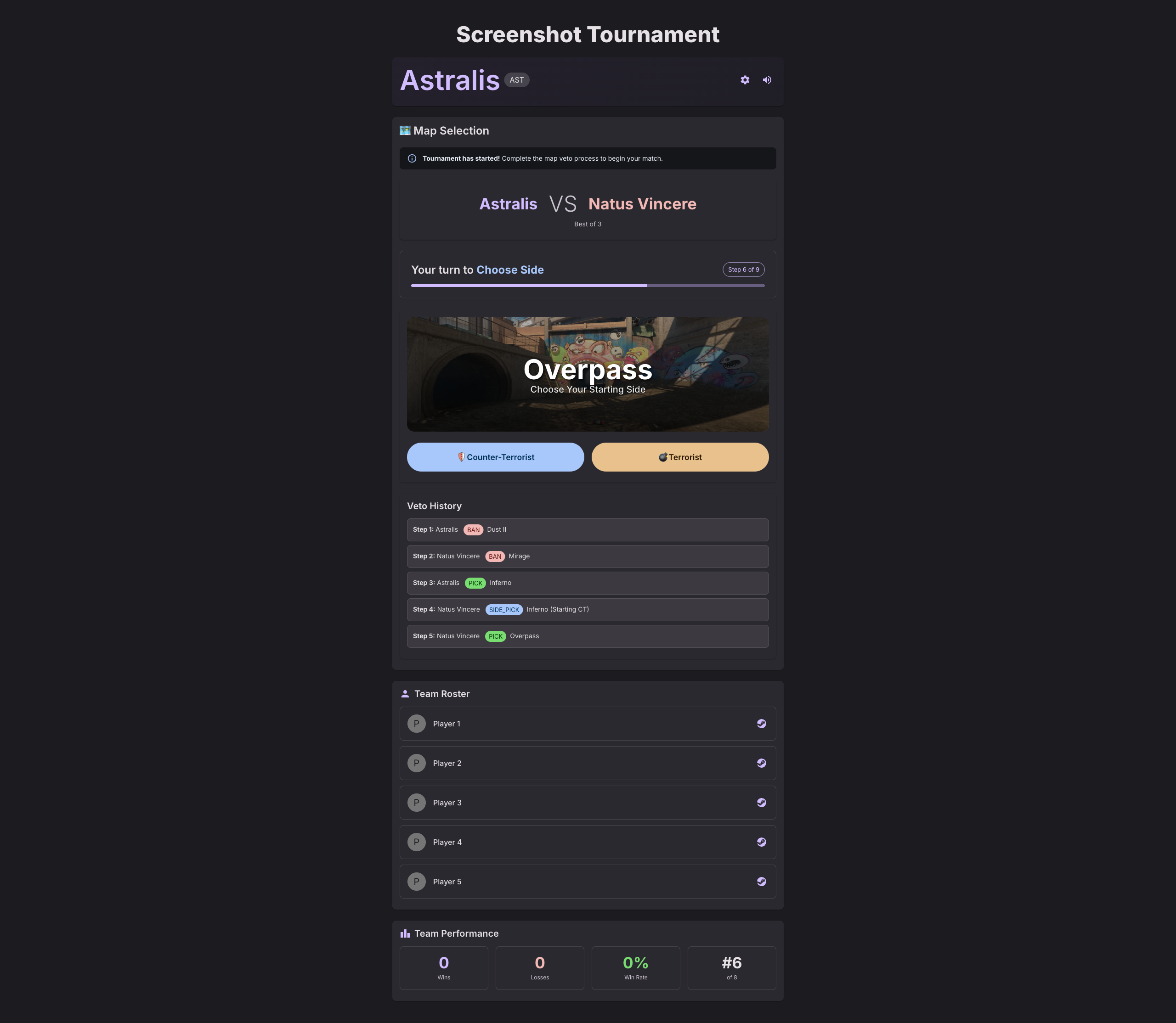
Connect to Server
Teams can connect directly to the match server using the connect button or copy the console command.

Tournament Leaderboard
Public leaderboard page showing tournament progress and player rankings. Available for shuffle tournaments.

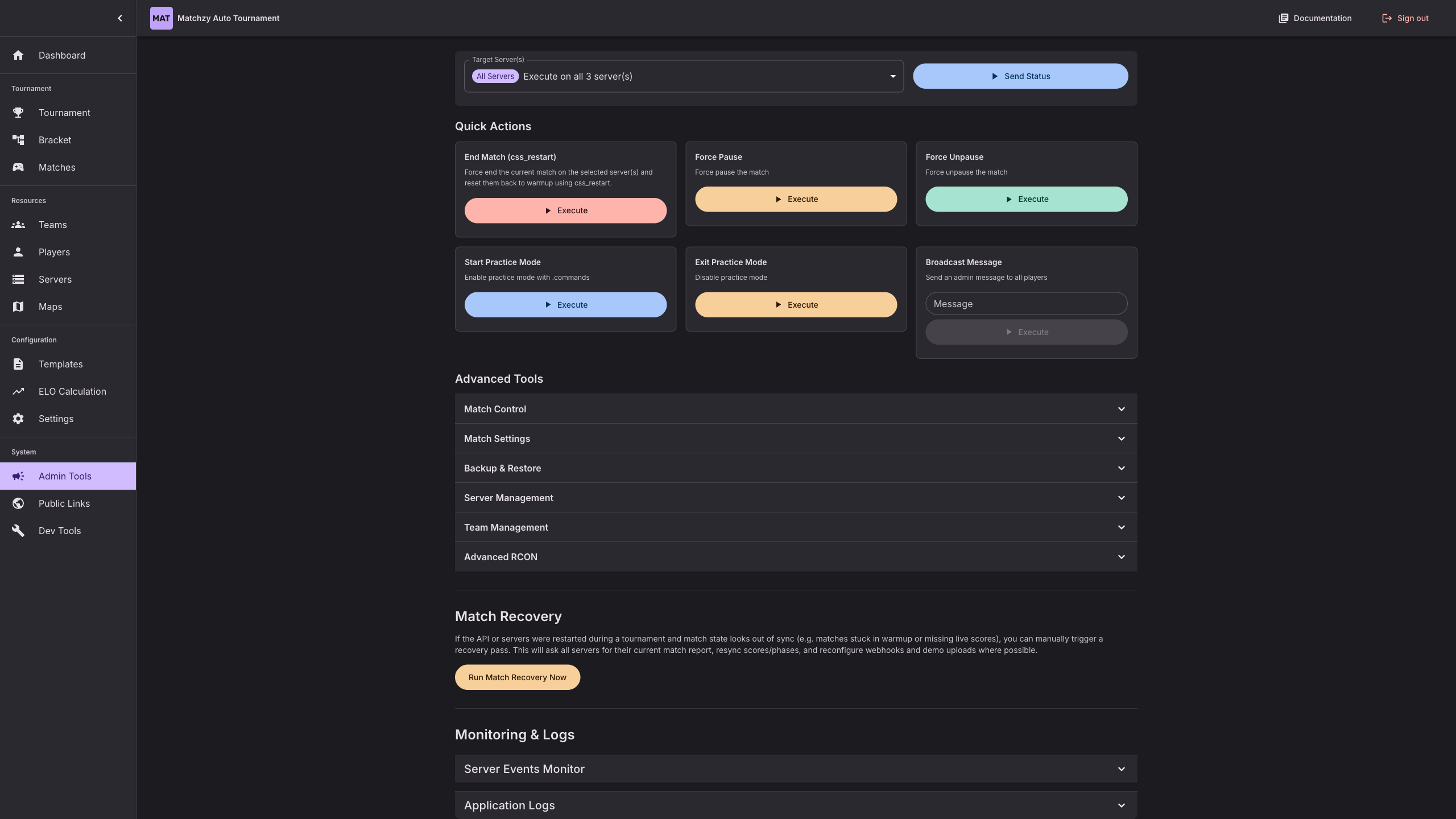
Admin Tools
Powerful RCON commands and match controls for tournament administrators.
Maps & Map Pools Management
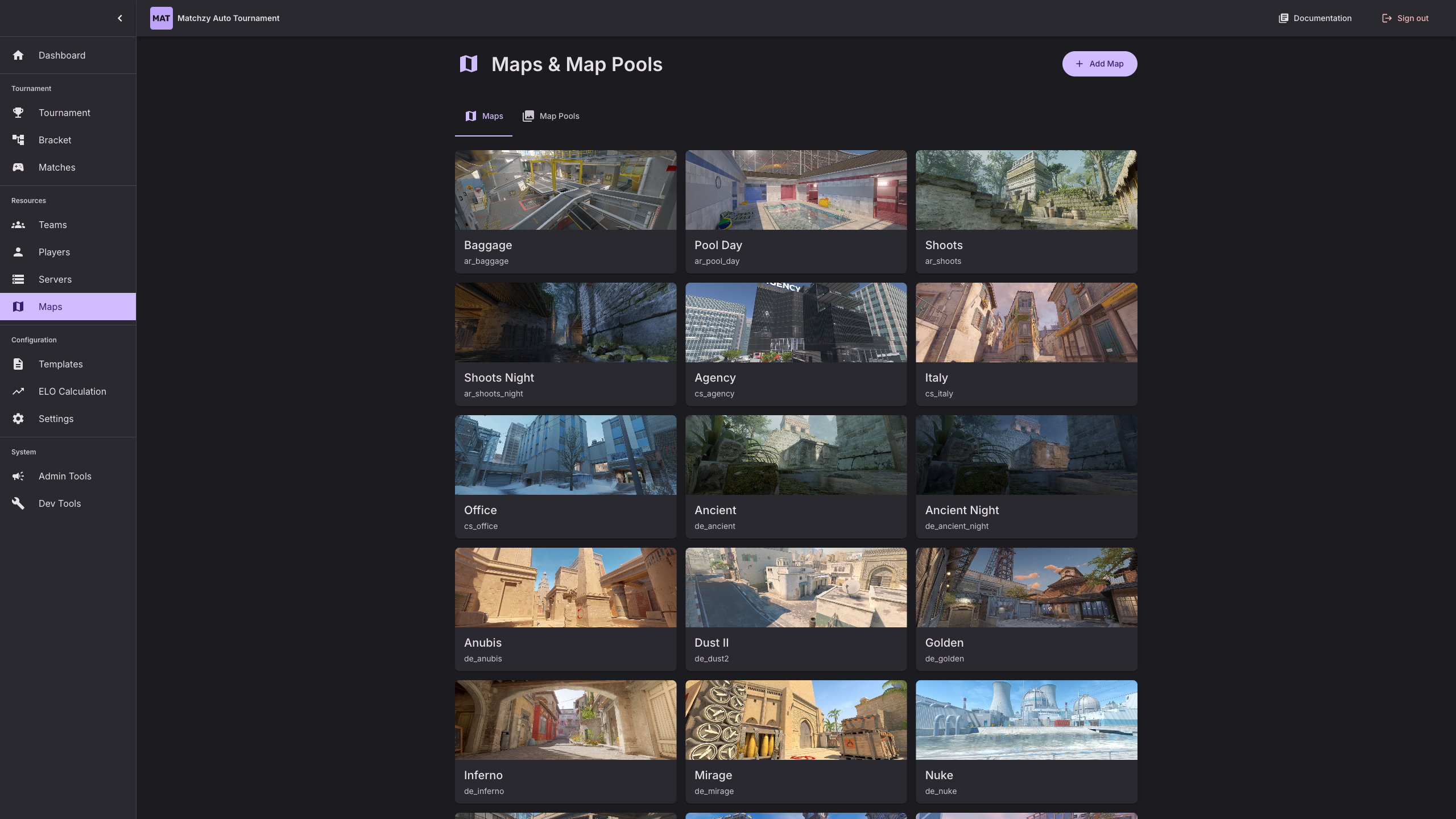
Maps Page
Manage all your maps with visual cards, add custom maps, and upload map images.
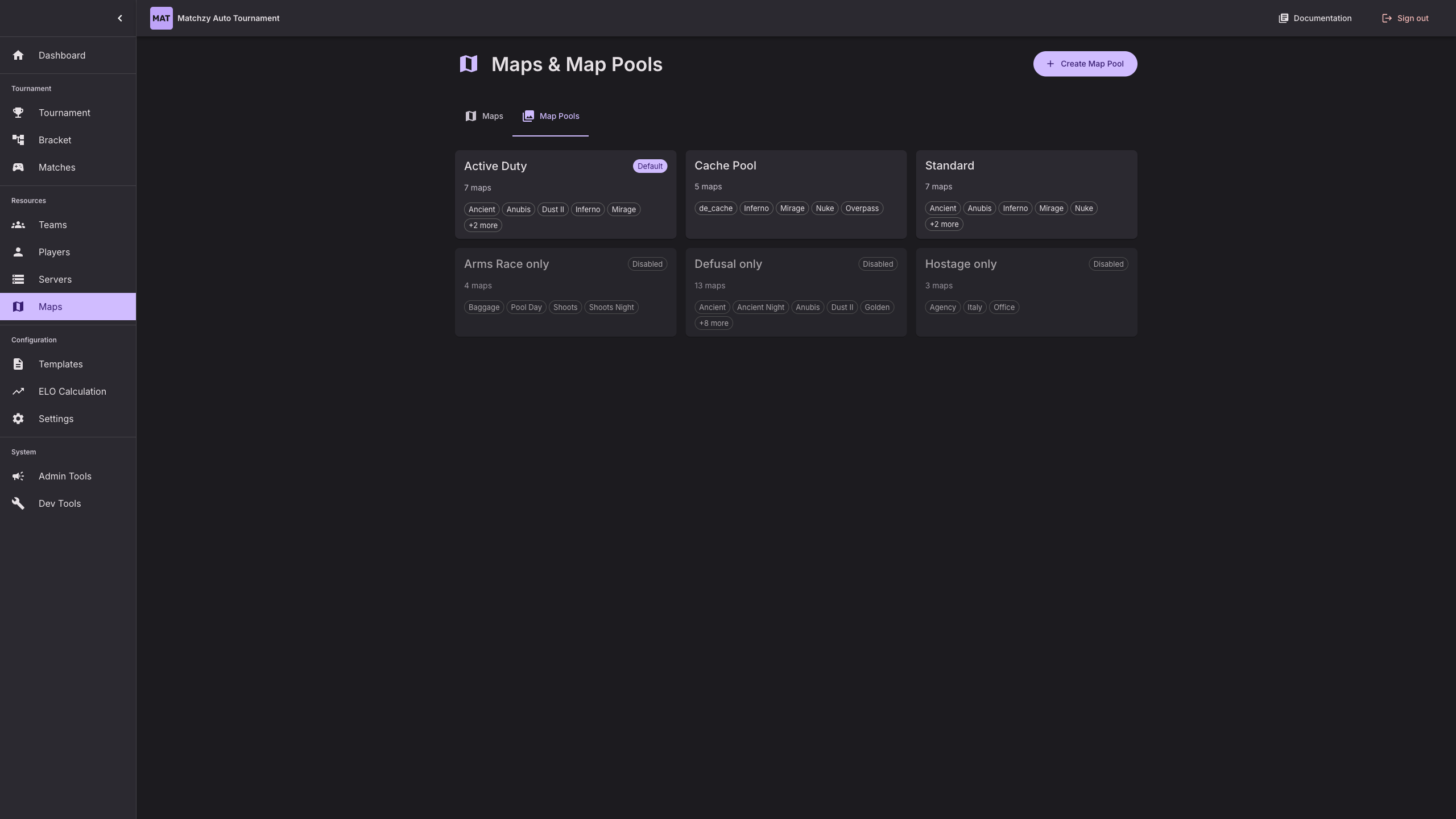
Map Pools Tab
Create reusable map pools for your tournaments. View all pools with map counts and previews.
Players Management
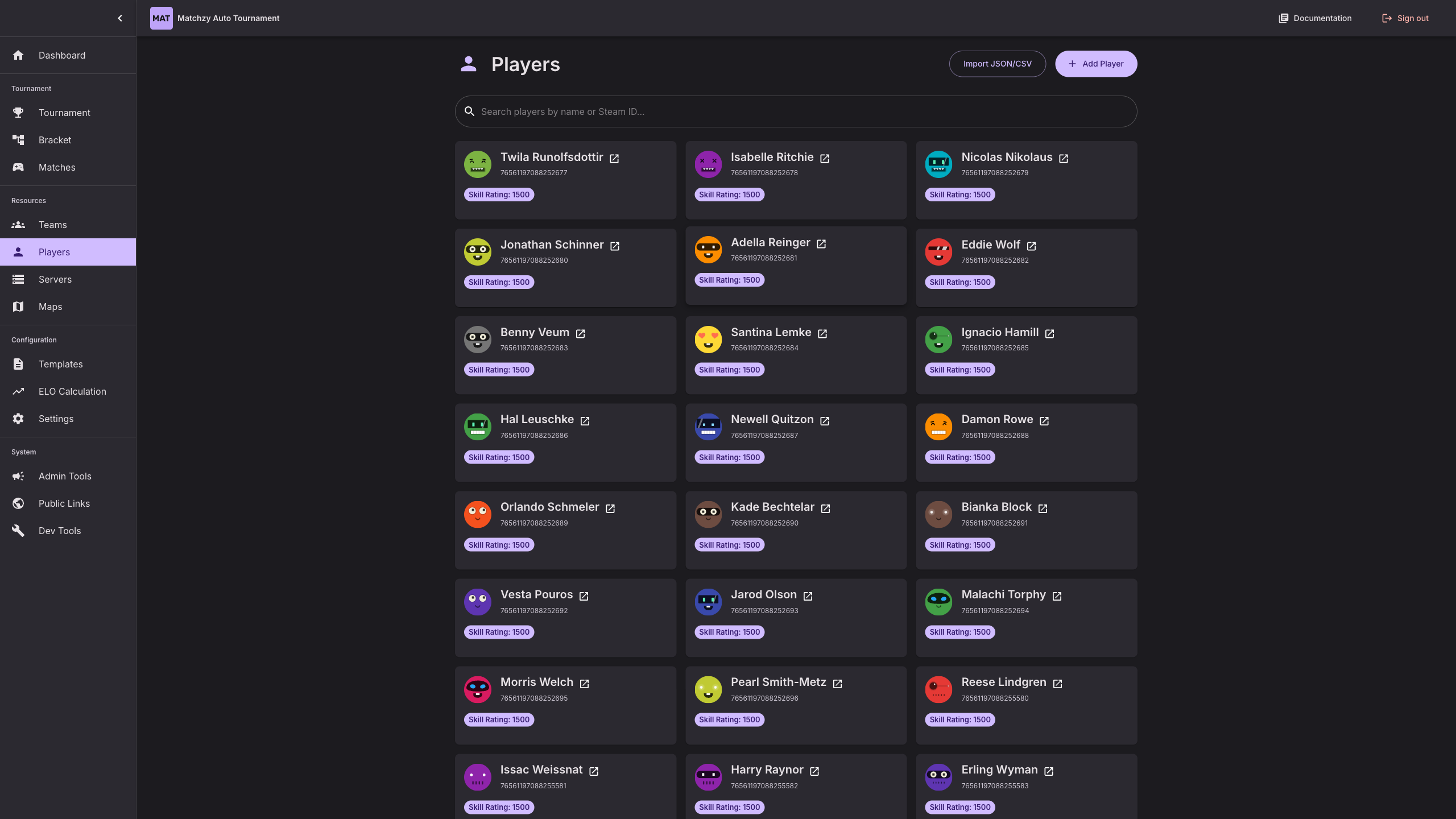
Players List
View and manage all players with ELO ratings and statistics.
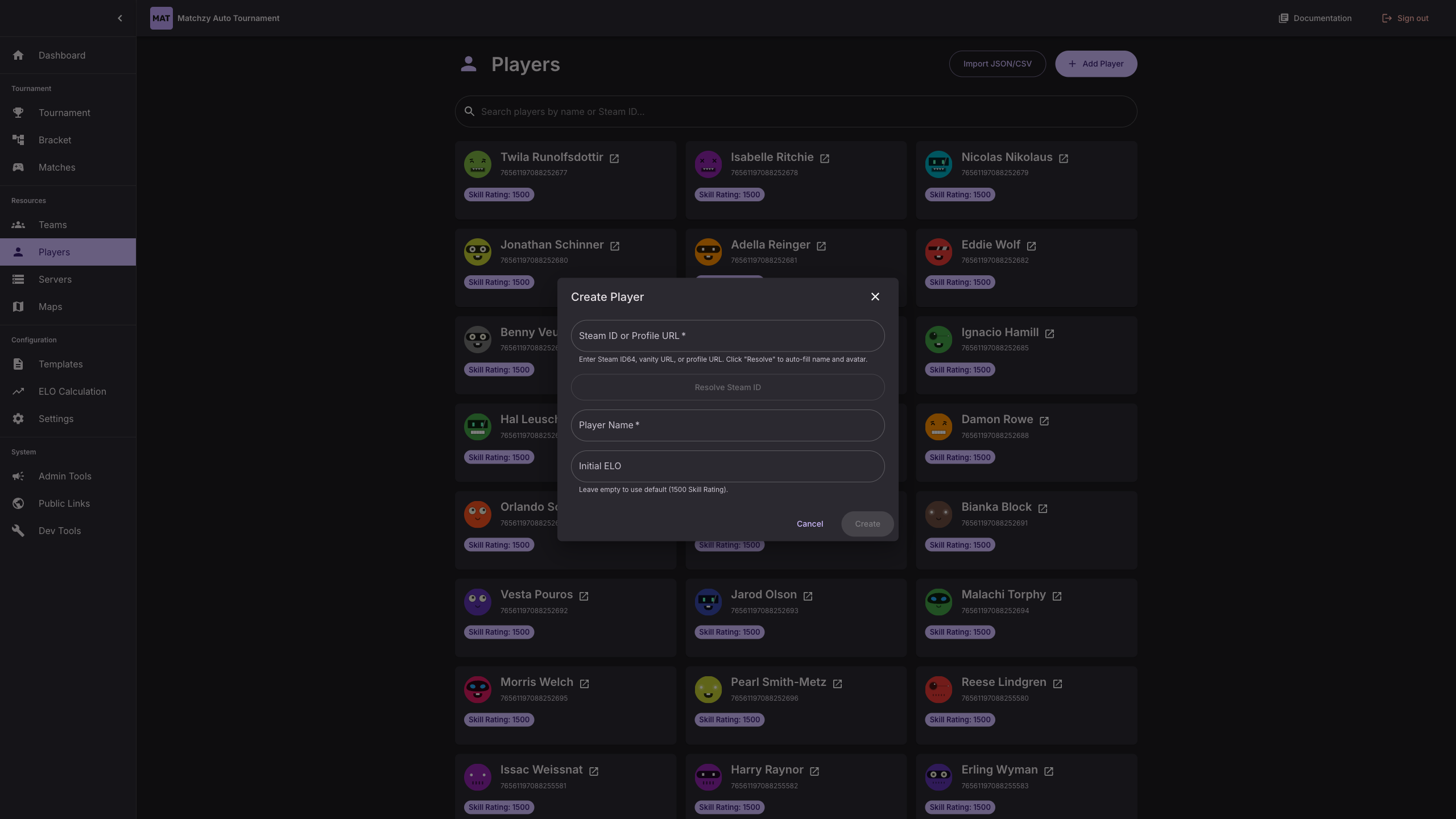
Add Player Modal
Add new players manually by entering their Steam ID or name. The system will automatically fetch player information from Steam.
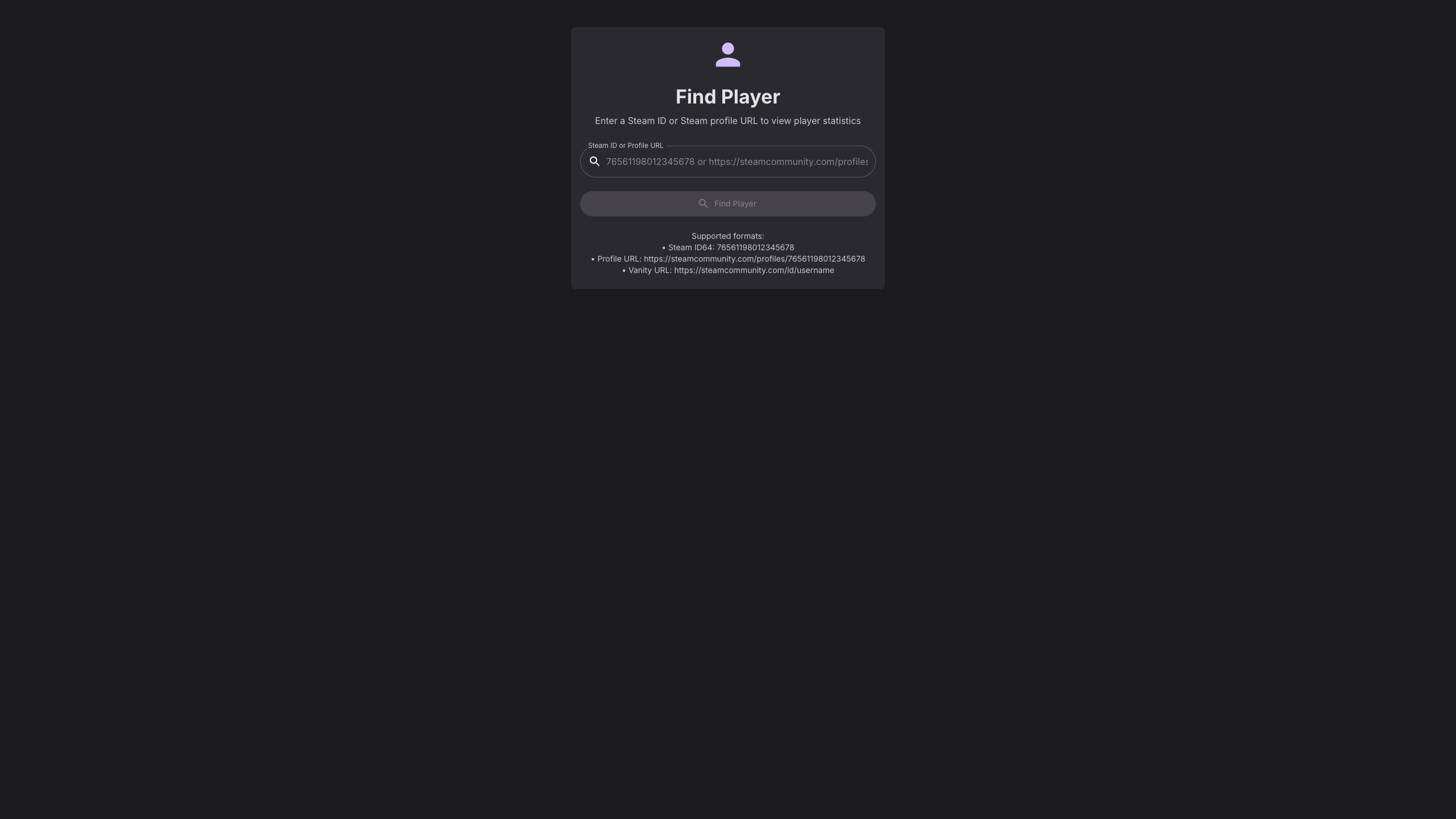
Find Player
Public search page to find players by name or Steam ID.
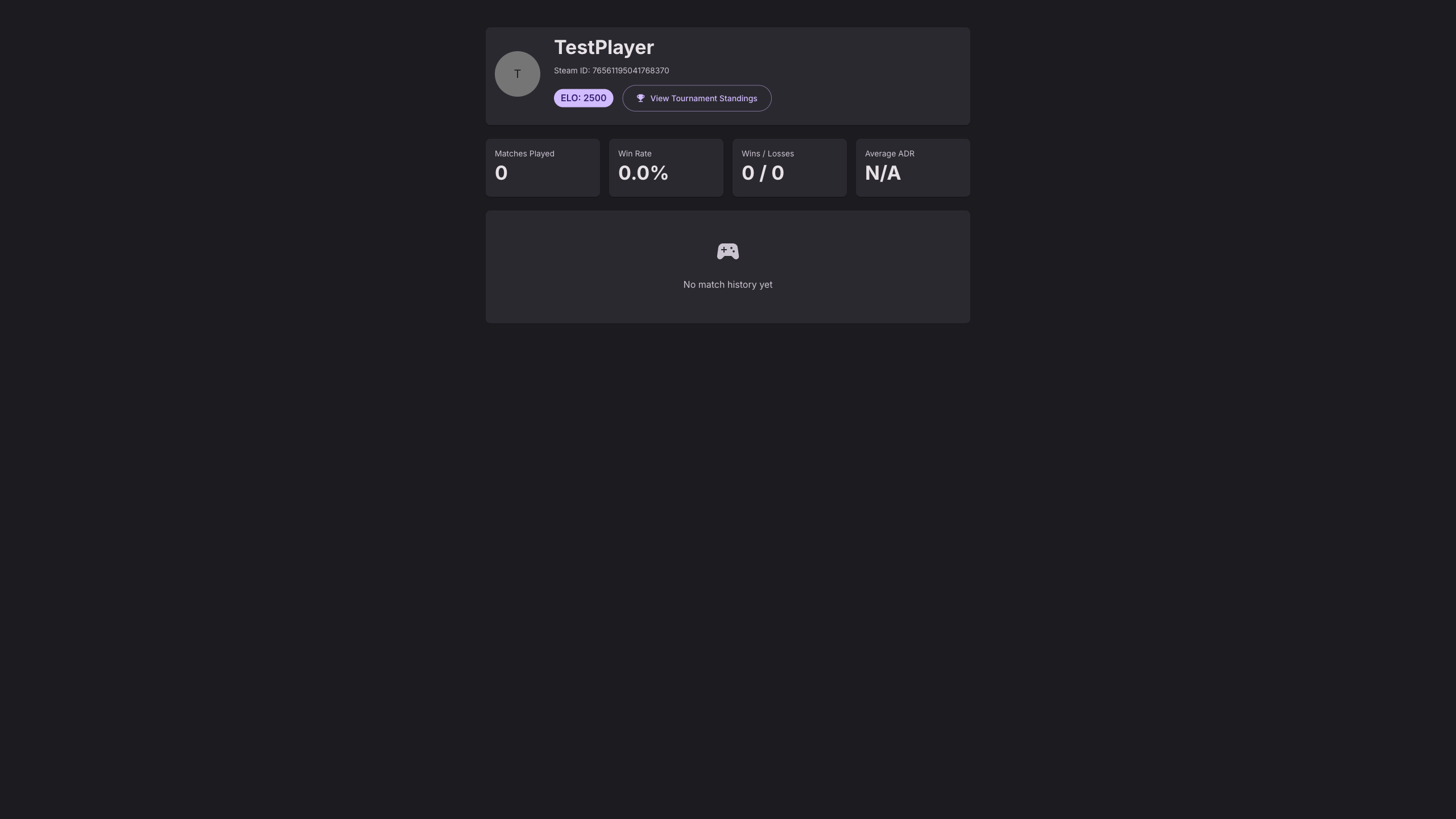
Player Profile
Public player profile page showing detailed statistics, ELO progression, match history, and performance metrics.
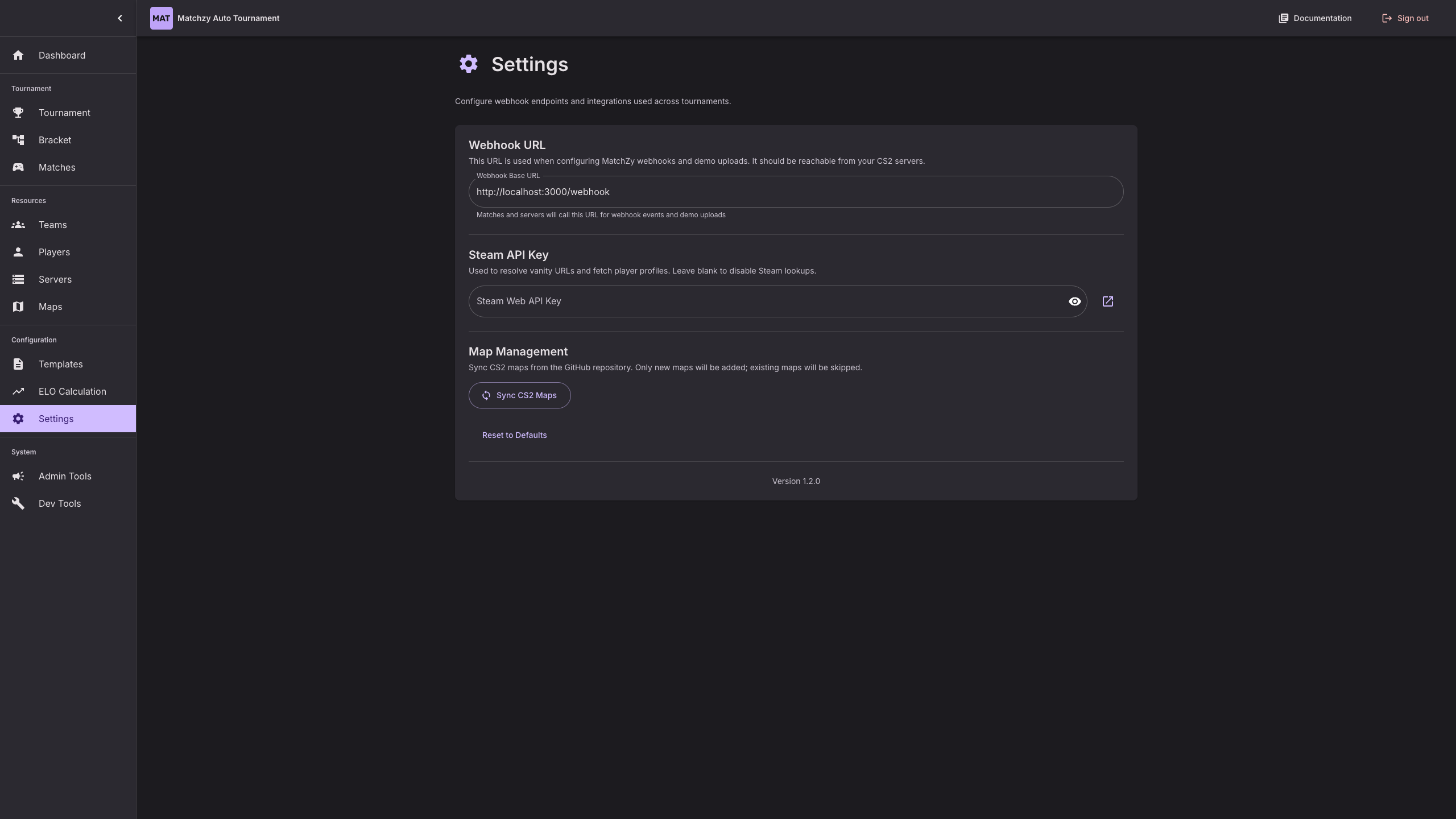
Settings
Configure application settings and preferences.
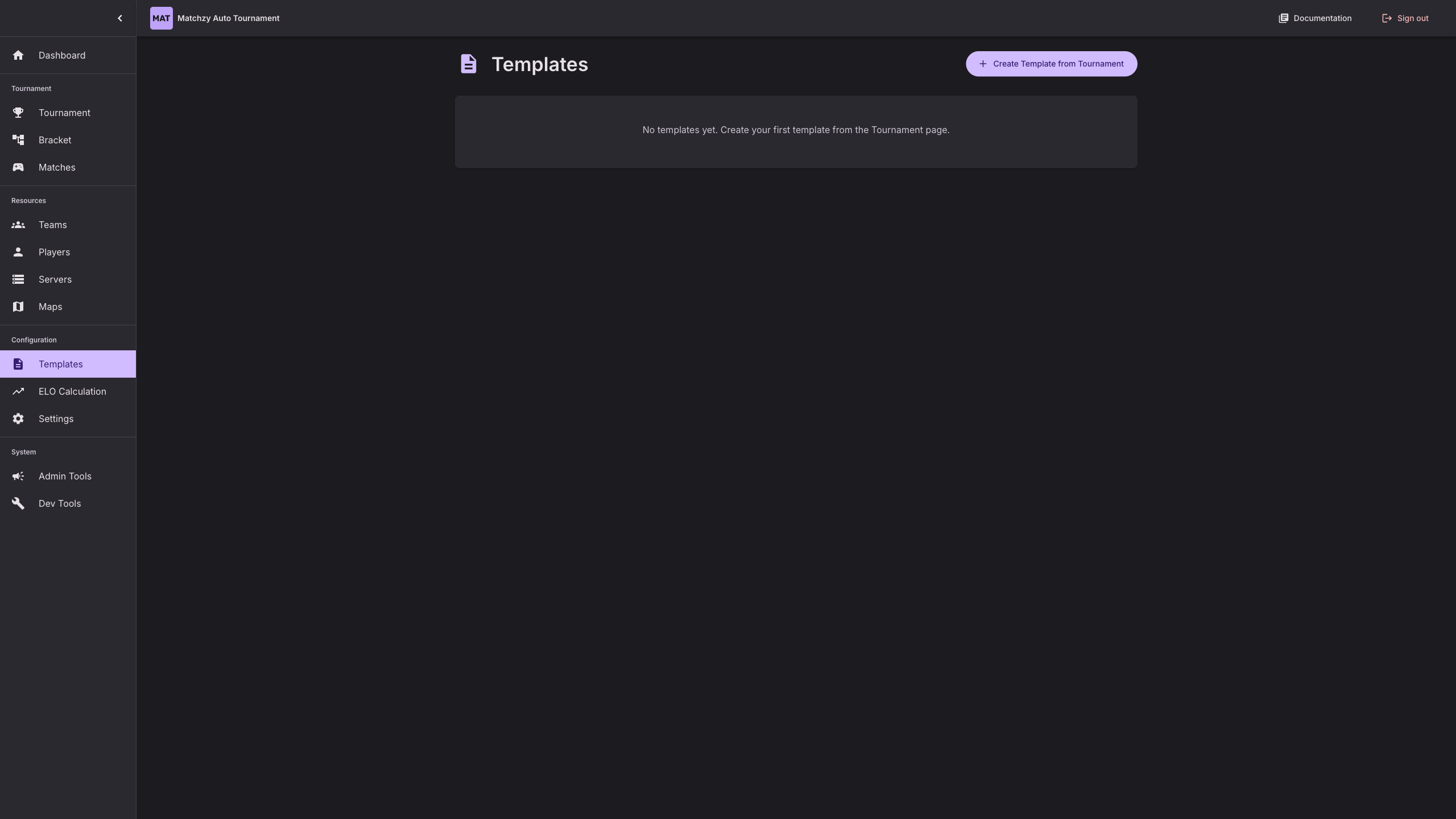
Templates
Manage tournament templates for quick tournament creation.
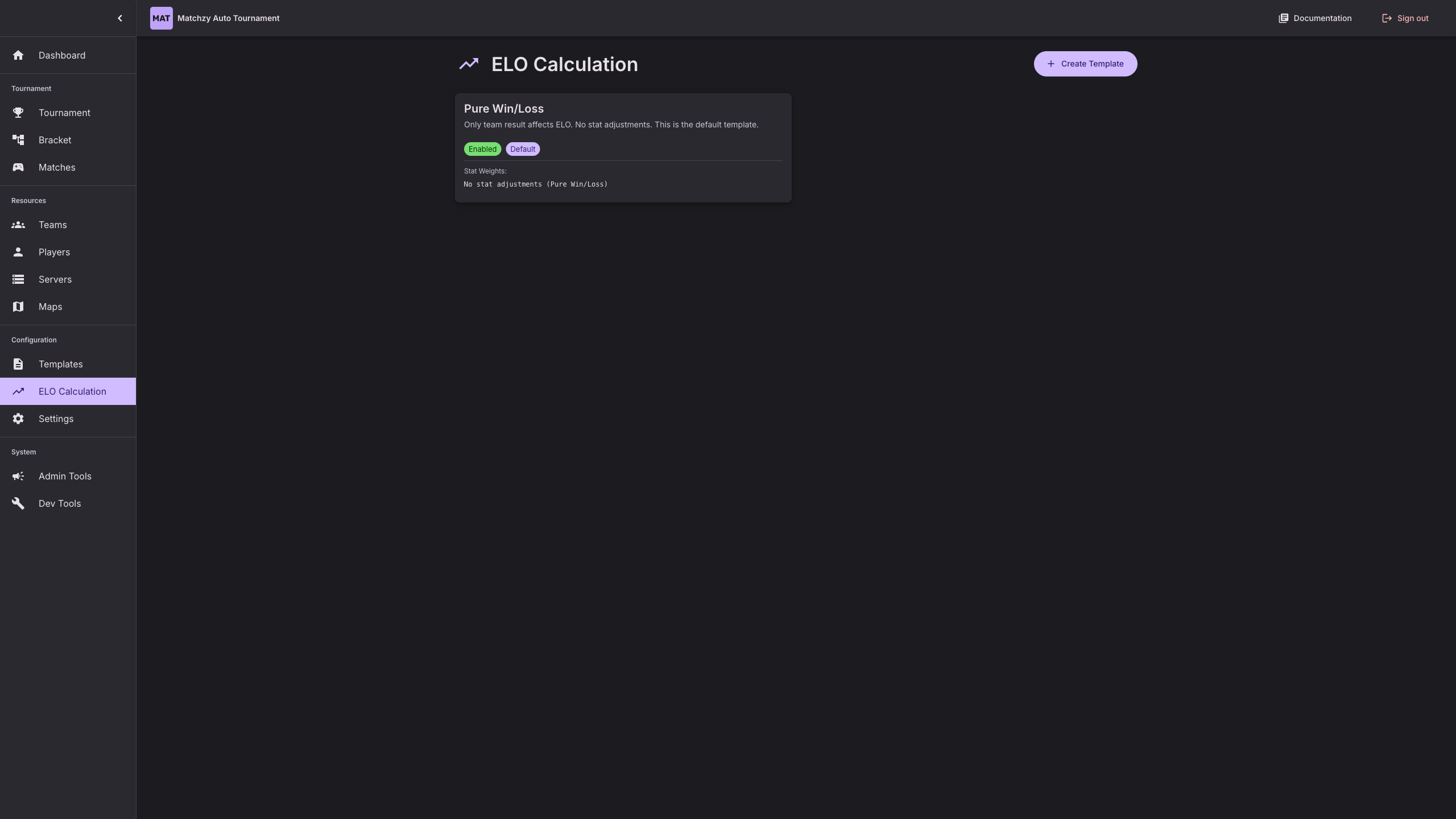
ELO Calculation Templates
Configure ELO calculation templates with custom weights and formulas.
Key Features Shown
✅ Onboarding System - Step-by-step getting started guide
✅ Tournament Creation - Multi-step form with validation
✅ Team Management - Full roster management with team tags
✅ Server Management - Real-time server status monitoring
✅ Visual Brackets - Clean, modern bracket visualization
✅ Match Management - Live match tracking and status updates
✅ Match Details - Player roster with live connection status (0/10 players)
✅ Map Veto - Interactive pick/ban system with map previews
✅ Maps & Map Pools - Custom map management with reusable pools
✅ Public Team Pages - No-auth pages for team access
✅ Admin Controls - Comprehensive RCON command interface with match control buttons
Ready to get started?